Word to Markdown: Complete Migration Guide for 2026
Convert Word documents to clean Markdown for Git workflows and Obsidian. Real methods tested on DOCX files, with fixes for tables, lists, and embedded images.

The request usually arrives sounding simple: "Can you move these Word docs into our team wiki?"
You open the shared drive. Three hundred .docx files. A decade of internal documentation — policies, runbooks, meeting notes, specs — scattered across folders with inconsistent names. None of it diffs cleanly. None of it searches well. And someone has decided it all needs to live in Git-tracked Markdown by the end of the quarter.
I've been through this migration twice. Once for a compliance archive (~200 files), once for an engineering knowledge base (~500 files). Both times the lesson was the same: Word-to-Markdown conversion isn't a one-click operation. It's a pipeline — conversion, inspection, cleanup — and the cleanup step is where the time actually goes.
This guide covers what works in practice: the three conversion methods worth knowing, what Word features survive the trip (and which quietly don't), and the post-conversion checklist that saves you hours of manual fixing.
Why Move Word Documents to Markdown at All?
Before the how, a quick why. Because if your team hasn't articulated the reason, the migration won't stick.
- Diffable history. Word's
.docxis a zipped XML bundle. Two versions look like two random binary blobs to Git. Markdown is plain text — every change is a readable diff. - Search and grep.
rg "incident response" docs/runs in milliseconds across thousands of Markdown files. The equivalent across Word docs requires a proprietary search tool. - Automation. Markdown is consumable by static site generators, documentation tools (Docusaurus, MkDocs, Nextra), LLM ingestion pipelines, CI systems, and linters. Word is mostly consumable by Word.
- Longevity. Plain text files outlive software vendors. DOCX is a stable format today, but the compatibility horizon for
.doc(the old binary format) is already fuzzy.
If none of those apply to your team, you probably don't need to migrate. If even one does, you're in the right place.
What Survives Conversion, and What Doesn't
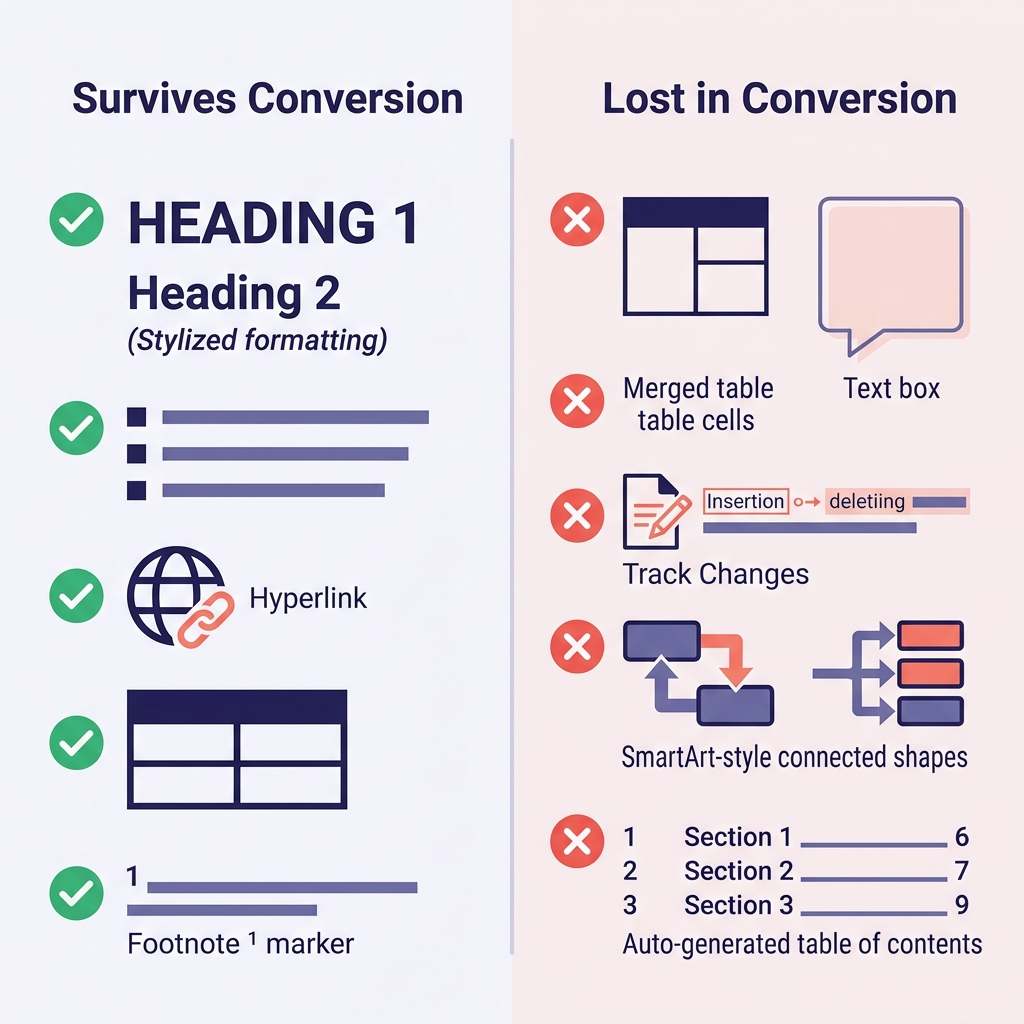
Setting expectations upfront saves the most time. Here's what I've observed across hundreds of conversions:
| Word Feature | Survives? | Notes |
|---|---|---|
| Headings (Heading 1–6 styles) | ✅ Yes | Map directly to # through ###### |
| Bold, italic, underline | ✅ Bold/italic yes | Underline has no Markdown equivalent (becomes italic or HTML <u>) |
| Bulleted and numbered lists | ✅ Usually | Deep nesting sometimes flattens |
| Hyperlinks | ✅ Yes | URL and link text preserved |
| Tables | ⚠️ Simple tables yes | Merged cells, cell colors, borders are lost |
| Inline images | ✅ Yes | Extracted to a folder; links rewritten |
| Footnotes | ✅ Yes (GFM) | Converts to [^1] syntax |
Code (if styled as Code paragraph) | ⚠️ Depends | Often flattens to plain text without a fence |
| Math equations | ⚠️ Partial | May convert to LaTeX; sometimes flattened |
| Track Changes | ❌ No | Accept or reject all changes first |
| Comments | ❌ No | Resolve or export separately before converting |
| Text boxes, SmartArt, shapes | ❌ No | Lost entirely — replace with images or plain text first |
| Auto-generated Table of Contents | ❌ No | Regenerate using your docs tool |
| Word fields (date, cross-references) | ❌ No | Convert to plain text before export |
The biggest migration surprises are usually (1) formatting that looks like a heading but was actually manual bold + larger font — those become plain bold text and your output has no structure — and (2) tables with merged cells, which collapse in ways that look ugly and require manual rebuilding.
Before you start a batch conversion, skim ten random source documents and flag these issues. It takes thirty minutes and prevents a lot of rework.
Method 1: Online Converter
This is what I recommend for single files and small batches (under ~50 documents). It's the fastest path from .docx to clean Markdown with no setup.
- Open our Word to Markdown converter
- Drag the
.docxfile into the upload area - Preview the converted Markdown
- Download the
.mdfile (images are bundled separately when present)
The output uses GitHub Flavored Markdown (GFM), so tables, task lists, and footnotes are preserved. Headings map to # levels, lists preserve their hierarchy, and hyperlinks retain their anchor text.
Worth noting: all conversion happens in-browser for standard documents. For very large files or when you're handling sensitive material, keeping the file off external servers is a genuine feature, not just marketing copy.
The limitations of any online converter (ours or anyone else's) are the same: batch processing isn't ideal, and you can't script it as part of a pipeline. For those cases, skip to Method 2.
Method 2: Pandoc (For Batches and Scripts)
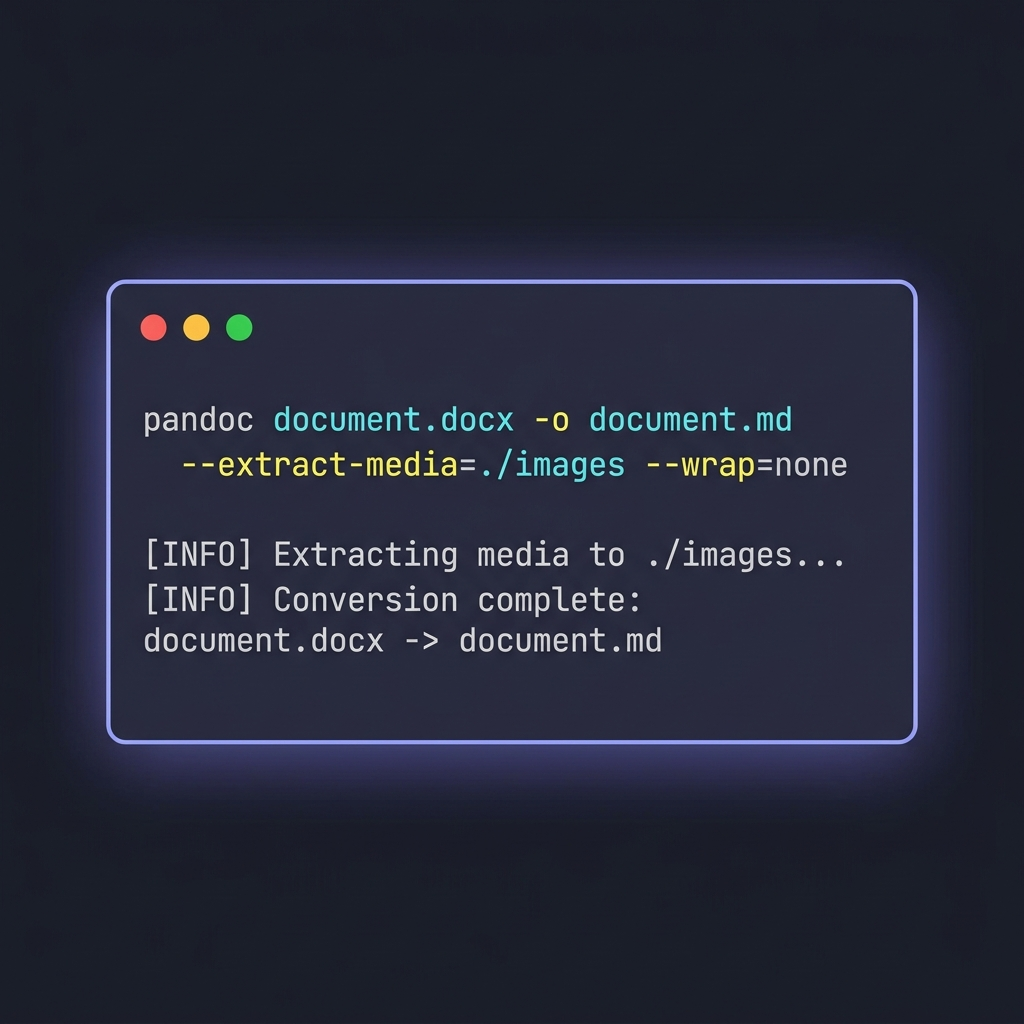
Pandoc is the universal document converter. It's the tool I use for anything involving more than a handful of files, or when I need to fine-tune the output.
The Basic Command
pandoc document.docx -o document.md
That's it for a single file. It runs quickly, produces readable output, and handles most common Word features out of the box. But Pandoc's real value shows up when you add flags.
Three Flags Worth Knowing
pandoc document.docx \
  -o document.md \
  --extract-media=./images \
  --wrap=none \
  --markdown-headings=atx
--extract-media=./images— pulls embedded images out of the DOCX and puts them in a folder, rewriting the image links in the output. Without this flag, inline images are silently dropped.--wrap=none— prevents Pandoc from hard-wrapping lines at ~80 characters. This matters because hard wraps break Git diff readability for prose-heavy docs.--markdown-headings=atx— forces# Headingsyntax instead of the older setext style (lines underlined with====). ATX is the modern convention.
Batch Converting a Folder
for f in *.docx; do
  pandoc "$f" -o "${f%.docx}.md" --extract-media=./images --wrap=none
done
Drop this into a shell script and you can process hundreds of files in minutes. For larger archives, add a trap and logging so you can resume if something crashes partway through.
Real-World Hiccups to Watch For
- Bullet markers differ. Pandoc sometimes uses
-, sometimes*. If you care about consistency, runsed -i 's/^\* /- /g'over the output, or configure your editor's Markdown formatter. - Numbered lists restart unexpectedly. Word often has "continue numbering" directives Pandoc can't interpret. You'll see lists that count
1, 2, 1, 2, 3when the source looked continuous. Fixable with a quick review pass. - Tables with long cells wrap into readability trouble. Pandoc does its best, but GFM tables don't support cell line breaks in the way Word does. Consider converting particularly complex tables to HTML blocks manually.
Pandoc has no GUI, which is both a drawback (non-technical teammates can't run it) and a benefit (it scripts into any CI/CD pipeline).
Method 3: Programmatic Conversion with Mammoth.js
If you're building a pipeline — say, a migration script that pulls DOCX files from SharePoint, converts, and commits to Git — neither a web UI nor a subprocess call to Pandoc may fit your stack. Mammoth.js is a JavaScript library that converts DOCX to clean HTML or Markdown directly in Node.js.
const mammoth = require("mammoth");

mammoth.convertToMarkdown({ path: "document.docx" })
  .then(result => {
    console.log(result.value); // the Markdown output
    console.log(result.messages); // warnings about unsupported features
  });
What makes Mammoth useful is its opinionated take: it ignores Word's visual styling entirely and focuses on semantic structure (headings, lists, tables). The output is cleaner than Pandoc's by default, at the cost of less control. For migrating a legacy archive where most docs have consistent structure, I'd reach for Mammoth. For idiosyncratic documents with heavy formatting, Pandoc's flexibility wins.
Python users have a similar option in python-docx combined with a Markdown writer, though that's more a DIY route than an off-the-shelf tool.
The Cleanup Step Nobody Warns You About
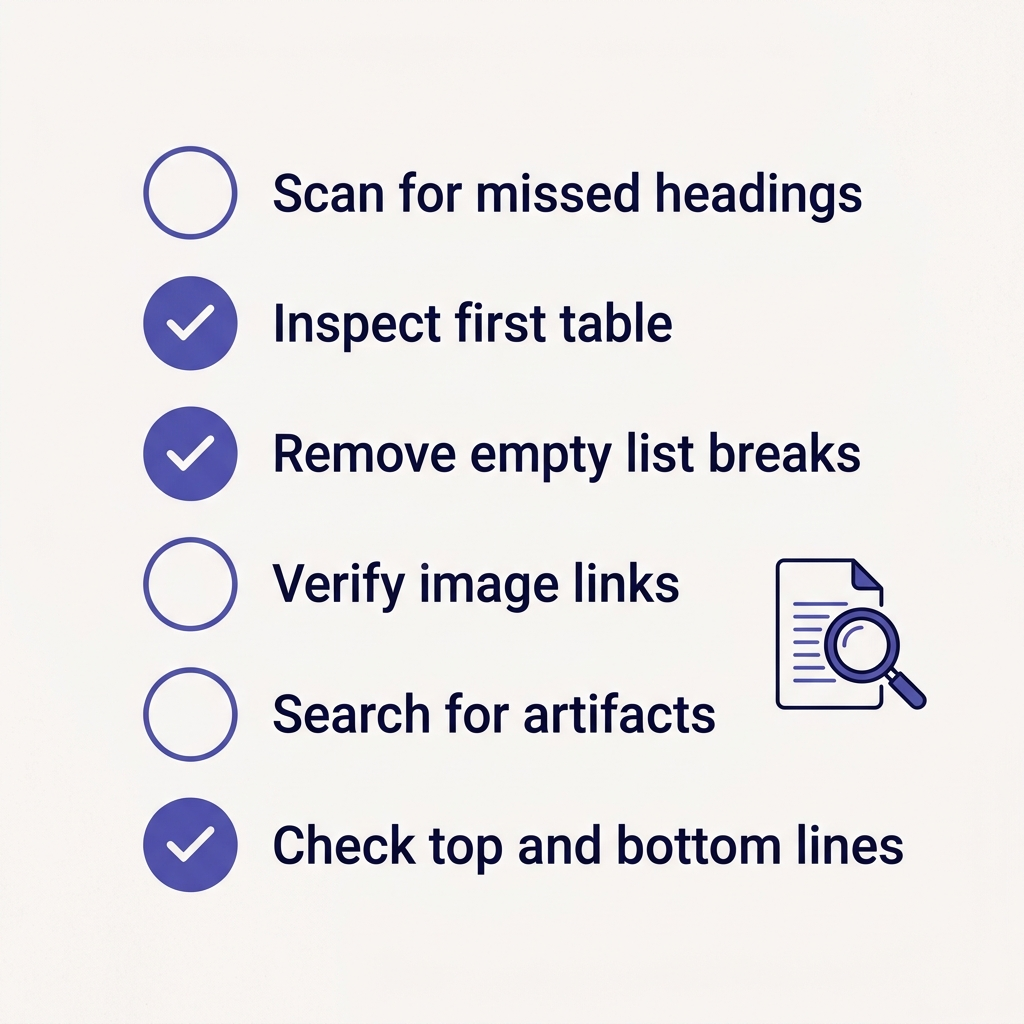
Conversion gets you to a .md file. It does not get you to a .md file you want to commit.
Here's my standard post-conversion checklist. It takes about five minutes per document once you're practiced:
- Scan for structural heading misses. Search the output for lines that look like headings but are actually
**Bold Text**on their own line. Someone styled them by hand in Word instead of using Heading styles. Promote them to real##headings. - Check the first table. If tables look right here, they'll probably look right everywhere. If the first one is broken, all are.
- Remove empty lines inside list items. Pandoc sometimes inserts blank lines that break list continuity.
- Verify image links. Open the file in a Markdown preview (VS Code's built-in works) and confirm images load.
- Search for stray artifacts. Common leftovers:
\at ends of lines (hard line breaks Word hides but Markdown shows),{.underline}style attributes,<span>tags that snuck through. - Check the first and last 10 lines. Headers, footers, and page numbers from Word often leak into the output as either empty content or weird artifacts.
For a large migration, automate items 5 and 6 with a cleanup script. Everything else benefits from human eyes — at least until you've built enough pattern recognition to trust the output for a specific document class.
A Real Migration: 200-File Compliance Archive
Here's the workflow I used for the compliance archive migration. Start to finish, it was two days of work across a 200-file archive.
Day 1 Morning: Triage the Source
Wrote a Python script that opened each DOCX, counted headings, images, and tables, and flagged anything with Track Changes still enabled or comments present. Output was a CSV of files sorted by complexity. The goal wasn't to fix anything yet — just to know what I was walking into.
Day 1 Afternoon: Batch Convert the Simple Files
About 140 of the 200 files were straightforward: no images, simple tables, clean heading structure. Ran them through Pandoc in a loop with --extract-media and --wrap=none. Spot-checked 20 random samples. All good.
Day 2 Morning: Handle the Complex Files Individually
The remaining 60 had issues — merged table cells, embedded spreadsheet objects, or substantial Track Changes history that someone needed to review first. For these, I used the online converter on a case-by-case basis, sometimes running Pandoc with different flags, sometimes cleaning the source DOCX first.
Day 2 Afternoon: Cleanup and Commit
Ran a cleanup script over all 200 converted files (removing {.underline} artifacts, standardizing bullet markers, fixing Pandoc's line-wrap outputs). Reviewed diffs, committed in batches of 50, pushed to the migration branch.
If I had tried to do any of this manually — opening each Word doc and pasting into a Markdown editor — it would have been at least two weeks of work. The conversion tools aren't optional; they're what makes the project tractable.
Common Problems and Fixes
Tables Look Wrong in the Markdown Preview
Ninety percent of the time, the source had merged cells or very long cell content. GFM tables don't support either gracefully. Your options: rebuild the table manually in GFM, use an HTML <table> block inside the Markdown (supported by most renderers), or split the table into multiple simpler tables.
Images Aren't Showing Up
Check whether the converter extracted them. Pandoc won't unless you use --extract-media. Online converters typically download a zip with the Markdown file plus an images/ folder — make sure both ended up in the right place and that image paths in the Markdown match.
The Output Has Weird Backslashes at Line Ends
These are hard line breaks from Word that Markdown renders as forced breaks. If the source Word doc was full of tight paragraph spacing that used line breaks instead of paragraph breaks, Pandoc preserves them. A quick find-and-replace for \\$ (end of line) usually cleans them up.
Heading Levels Are Wrong After Conversion
Word documents frequently start at Heading 2 or Heading 3 (because Heading 1 was reserved for the title page). Markdown convention is to start from # (H1). Depending on how your docs system displays headings, you may need to shift all levels up by one. sed works: sed -i 's/^## /# /; s/^### /## /; ...' file.md.
The Markdown Looks Nothing Like the Word Document Visually
This is expected. Markdown describes structure, not appearance. Styling comes from whatever system renders the Markdown (GitHub, your docs site, MkDocs theme, etc.). If visual fidelity is critical, PDF is a better target — see our Markdown to PDF guide for workflows that preserve visual design.
Round-Tripping: Markdown Back to Word
One natural question after migrating: "What if I need to send a Markdown doc back to a stakeholder who only opens Word?" That's the reverse conversion — and it's a much cleaner operation, because Markdown's limitations mean there's less to translate. The Markdown to Word guide covers that flow.
For teams that bounce between both formats frequently, the workflow I've seen work is: Markdown is the source of truth in Git, Word exports happen on demand when someone needs to review or annotate. Nothing ever gets edited in Word and merged back — that way the migration doesn't slowly unravel.
Wrapping Up
Word to Markdown conversion is a migration, not a button-press. The tools do the heavy lifting — our online converter for one-off files, Pandoc for batches, Mammoth.js for pipelines — but the real work is the inspection before you convert and the cleanup after.
The two patterns that save the most time:
- Triage first. Understand what's in your source archive before you start converting. Fifteen minutes of sampling prevents hours of reacting to surprises.
- Expect cleanup. Budget five minutes per document for the review-and-polish pass. Treating it as an unavoidable step keeps you honest about how long the migration will take.
If you're new to Markdown and wondering what the output will look like, start with what is Markdown and the basic syntax guide. For the advanced features — tables, footnotes, task lists — the extended syntax reference covers what GFM supports.
And if your migration is coming out of Obsidian instead of Word, the Obsidian export guide handles that flow end-to-end.