Ultimate Guide to Free Markdown to Word Converters in 2026
Comprehensive guide to converting Markdown to Word in 2026. Discover free tools, advanced techniques, and best practices for high-fidelity DOCX exports.
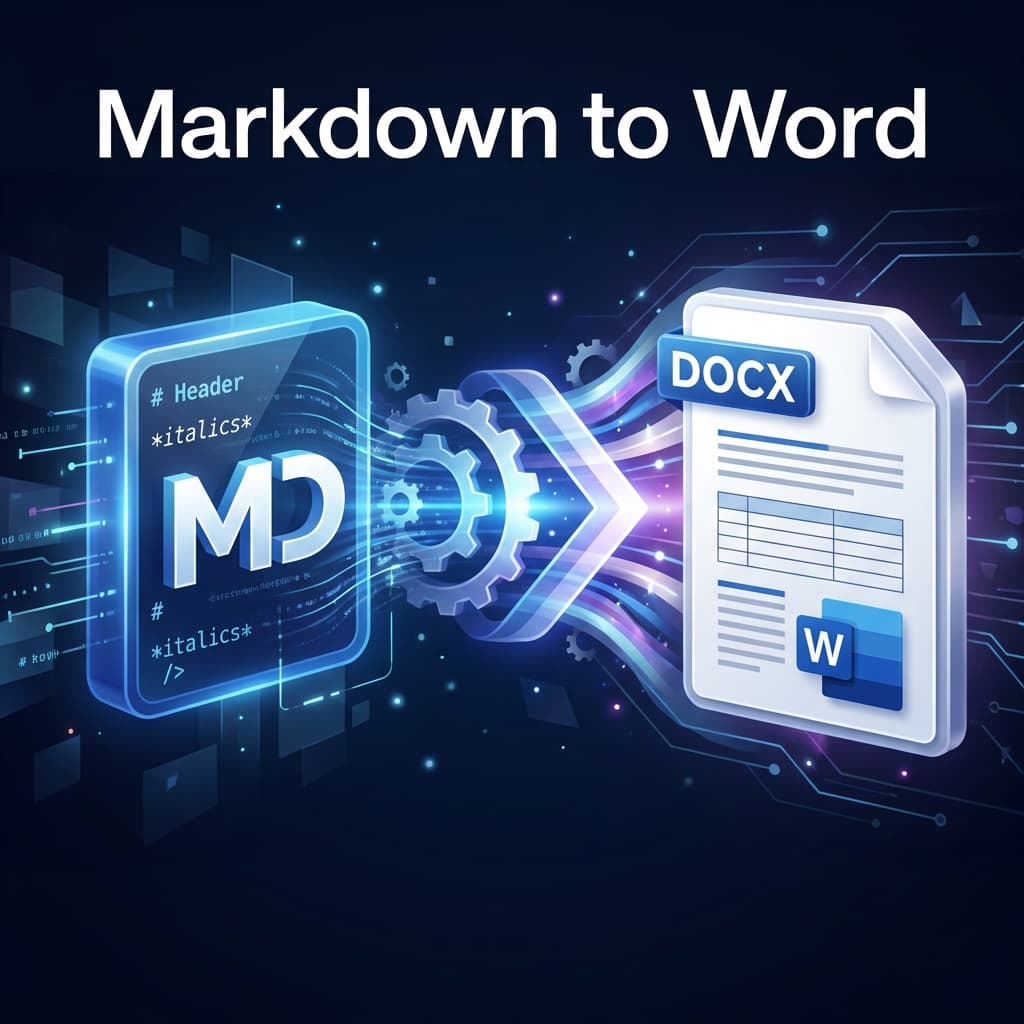
If you've ever spent hours manually reformatting a Word document after pasting content from a Markdown editor, you know the struggle.
One minute you're happily writing in VS Code or Obsidian, enjoying the distraction-free bliss of plain text. The next, you're wrestling with Microsoft Word's ribbon interface because a client, manager, or colleague needs a .docx file. Tables break, code blocks lose their syntax highlighting, and images disappear into the void.
It doesn't have to be this way.
Converting Markdown to Word is a critical workflow for developers, technical writers, and content creators who need to bridge the gap between efficient writing and professional deliverables. In this guide, I'll walk you through how to achieve high-fidelity exports that preserve your hard work, using the best free tools availalable in 2026.
Why Convert Markdown to Word?
Markdown was created by John Gruber in 2004 to help writers produce valid HTML without dealing with messy tags. It's fantastic for the web and developer documentation. But the business world runs on Microsoft Word.
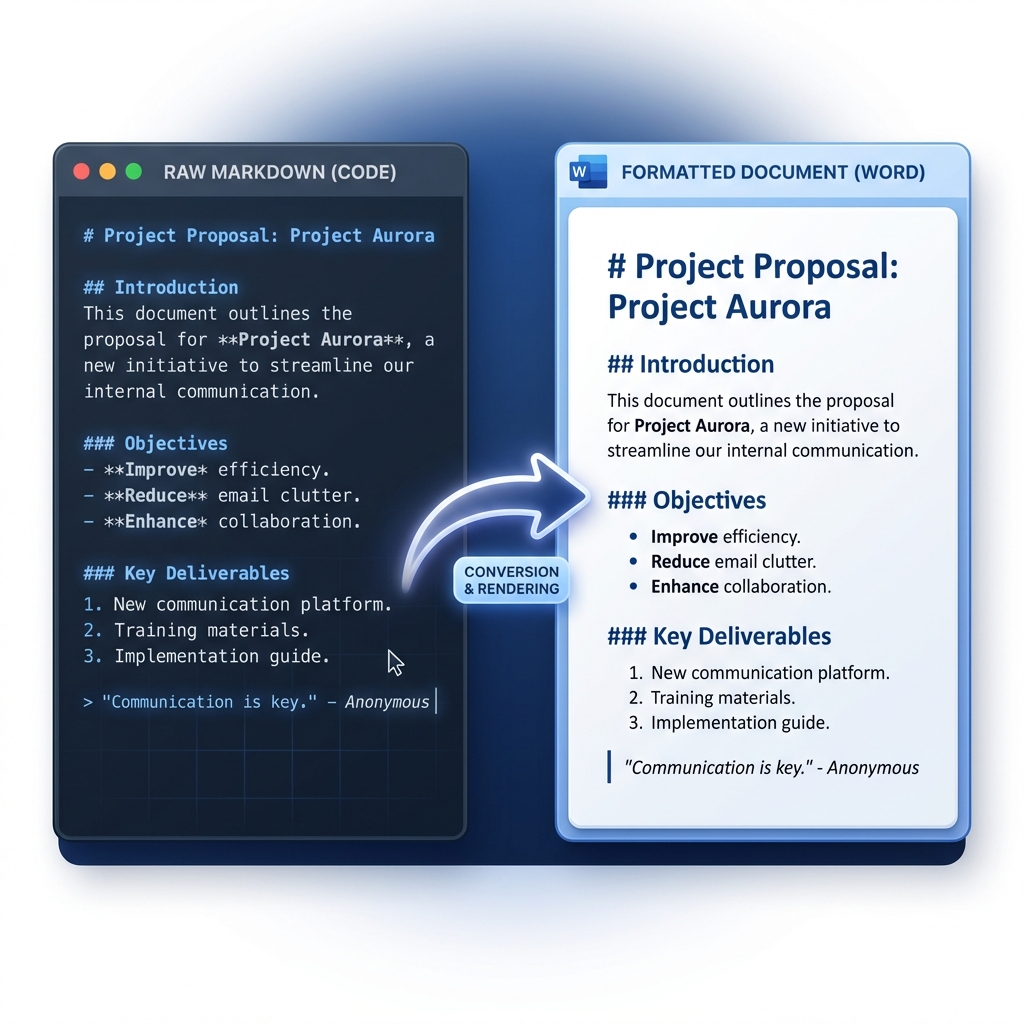
Common scenarios where you need to bridge this gap include:
- Collaboration: Your marketing team uses Track Changes in Word.
- Compliance: Regulated industries often require
.docxor PDF formats for archiving. - Client Deliverables: Many non-tech clients simply cannot open or edit a
.mdfile.
The goal isn't just to "convert files"—it's to maintain the integrity of your content. You want your headers to stay as headers, your lists to remain nested, and your code to look like code.
The Challenge of Portability
When you search for "export Markdown to Word", you're often looking for a solution to ecosystem mismatches. Moving plain text to a rich text format (RTF) or XML-based format (like DOCX) requires a parser that understands both the syntax of Markdown and the styles of Word.
Without a dedicated converter, you face:
- Lost Formatting: Bold/Italic styles stripping out.
- Broken Tables: Grids turning into unreadable text blobs.
- Missing Images: Local image paths breaking when the file moves.
Top Free Markdown to Word Converters in 2026
I've tested the most popular tools so you don't have to. Here are the standout options based on speed, fidelity, and ease of use.
1. MarkdownCo (Best for Speed & Security)
I'm biased, but for good reason. Our Markdown to Word converter was built specifically to solve the friction of quick, secure exports without the bloat.
- How it works: Drag your
.mdfile, select DOCX, and download. - Best feature: Zero configuration. It handles tables and GitHub Flavored Markdown (GFM) out of the box.
- Privacy: No accounts required. Files are processed in memory and purged immediately.
2. Pandoc (Best for Power Users)
Pandoc is the "Swiss Army Knife" of document conversion. It's a command-line tool that offers incredible control if you're comfortable with a terminal.
- Pros: Scriptable, highly customizable styling.
- Cons: Requires installation and CLI knowledge.
- Command:
pandoc input.md -o output.docx
3. StackEdit (Best for Browser Editing)
If you want to write and export in the same place, StackEdit is a solid web-based editor.
- Pros: Syncs with Google Drive.
- Cons: Export fidelity can sometimes be hit-or-miss with complex images.
Step-by-Step: Converting Markdown to Word Online
Let's look at a practical workflow using MarkdownCo. This process ensures your final document is 99% ready for sharing, minimizing cleanup time.
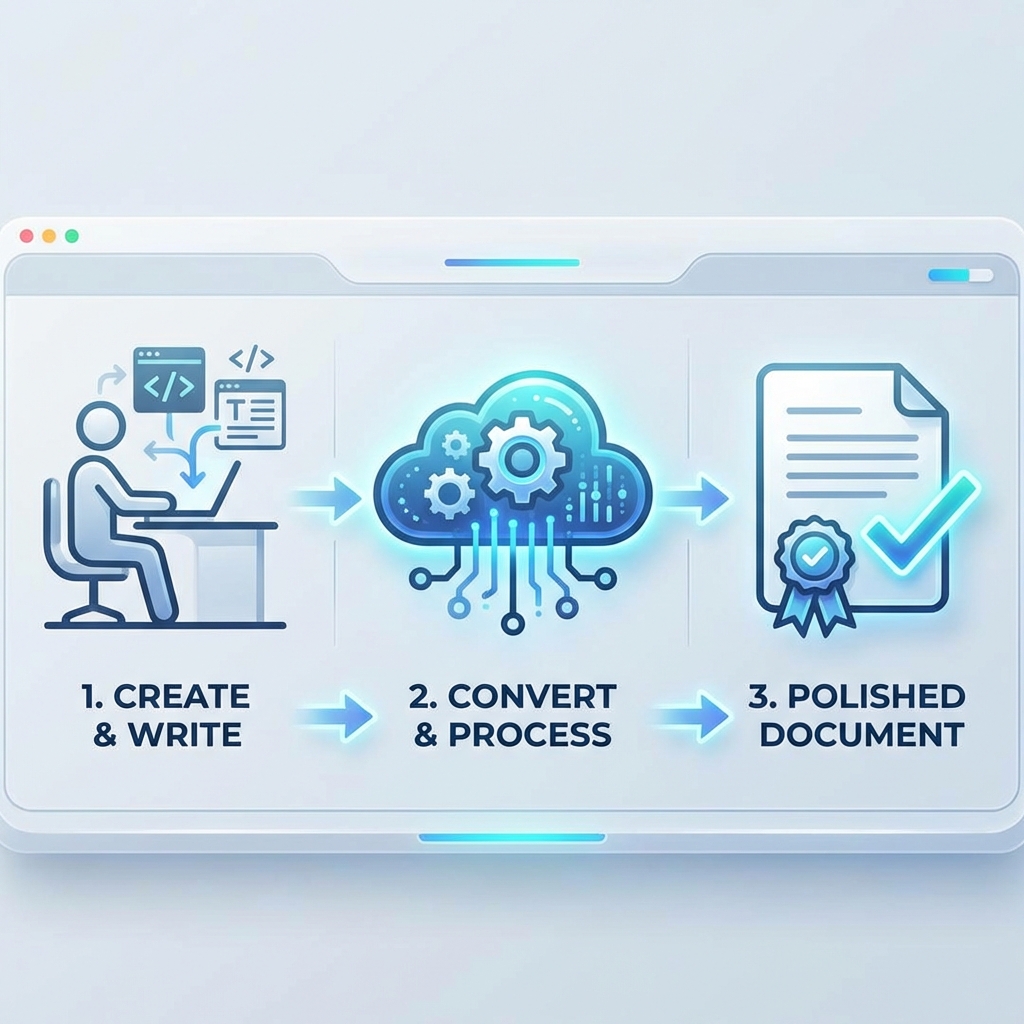
Step 1: Prepare Your Markdown
Clean usage of syntax is key. Ensure your specific elements are standard:
- Use standard headers (
#,##). - Ensure code blocks are "fenced" with three backticks and a language identifier (e.g.,
```python). - Check that your tables use consistent pipe syntax (
| Header |).
Step 2: Upload and Convert
Go to the Markdown to Word converter, upload your file, and click convert. The conversion engine parses your Markdown AST (Abstract Syntax Tree) and maps it directly to Word's XML styles.
Pro Tip: If your document has local images, ensure you upload them or use public URLs. Markdown files don't "contain" images; they just link to them!
Step 3: Polish in Word
No converter is perfect, but we get close. Once you open the .docx:
- Update TOC: If you included a
[TOC], Word may need you to "Right Click > Update Field" to generate the page numbers. - Check Page Breaks: Markdown doesn't really have the concept of "pages". You might need to insert a manual break (Ctrl/Cmd + Enter) before major new sections.
- Apply Styles: The output uses standard Word styles (Normal, Heading 1, etc.). You can instantly change the look by selecting a new "Design" theme in Word.
Best Practices for High-Fidelity Exports
Handling Images and Media
This is the #1 pain point. To ensure images survive the trip:
- Use absolute paths (URLs) if possible.
- If using a tool like Pandoc, you must specify the resource path.
- MarkdownCo handles embedded Base64 images or public URLs automatically.
Integrating with Workflow Tools
For teams, consider automating this. You can set up a GitHub Action using Pandoc to auto-generate a .docx file every time you push changes to your documentation repo. This keeps non-technical stakeholders in the loop without you manually running conversions.
Conclusion
Converting Markdown to Word doesn't have to be a manual nightmare. With the right tools, you can keep the developer-friendly workflow of Markdown while satisfying the business requirement for Word documents.
Whether you choose a CLI powerhouse like Pandoc or a refined web tool like MarkdownCo, the key is choosing a converter that respects your document's structure.
Need the reverse? Our Word to Markdown converter can transform .docx files back into clean Markdown — perfect for importing Word content into Git repositories or documentation platforms.
For other output formats, check out our Markdown to PDF converter for print-ready documents and our Markdown to HTML converter for web publishing. You can also explore our Markdown to PDF guide and Markdown to HTML guide for more conversion tips.
Ready to try it? Convert your first Markdown to Word file now and see the difference.