How to Export Obsidian Notes to PDF, Word & HTML
Struggling to export Obsidian notes with proper formatting? Learn step-by-step methods to convert your vault files to PDF, Word, and HTML without losing styles.
Obsidian is one of the most popular Markdown-based note-taking apps, with millions of users building personal knowledge bases, writing documentation, and managing projects. But there's a recurring frustration: getting your notes out of Obsidian in a format other people can actually use.
Your manager needs a Word document. Your client expects a PDF. Your blog requires HTML. And Obsidian's built-in export? It produces bare-bones PDFs with no styling control and doesn't support Word at all.
I've been using Obsidian as my primary writing tool for over two years. In this guide, I'll walk through the exact methods I use to export notes to PDF, Word, and HTML — with formatting that actually looks professional.
Why Obsidian's Built-in Export Falls Short
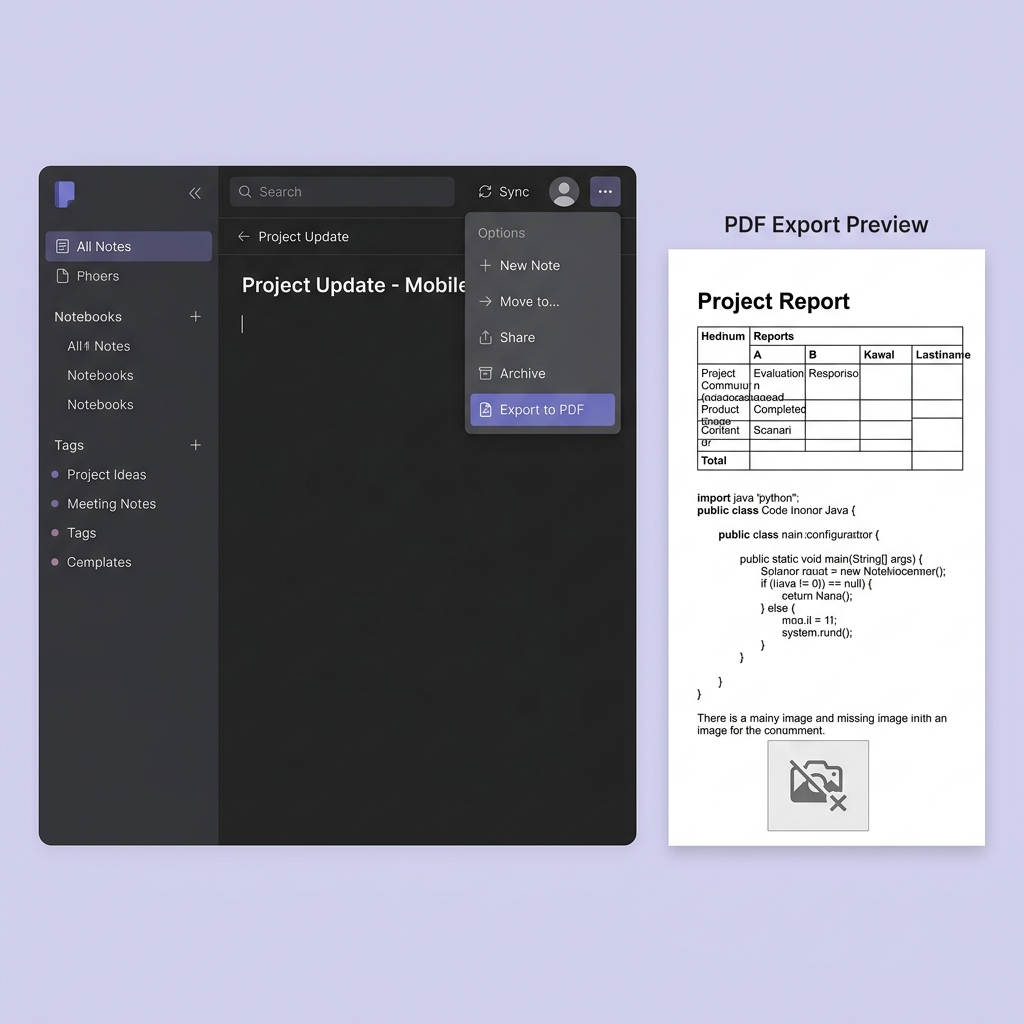
Obsidian does have a native "Export to PDF" option under the menu (three dots → Export to PDF). It works for simple notes, but falls apart quickly when your content includes:
- Tables — column widths often break, especially with longer cell content
- Code blocks — syntax highlighting is inconsistent or missing entirely
- Embedded images — local vault images (
![[image.png]]) may not render in the export - Callouts and admonitions — these Obsidian-specific elements don't translate to standard PDF
- Wikilinks —
[[Page Name]]links become dead text in the exported file
And for Word or HTML? There's no built-in option at all. You're left copying and pasting into Google Docs or Microsoft Word, losing formatting every time.
Before You Export: Prepare Your Markdown
The quality of your export depends heavily on how clean your Markdown is. Here's what to check before converting:
Convert Obsidian-Specific Syntax
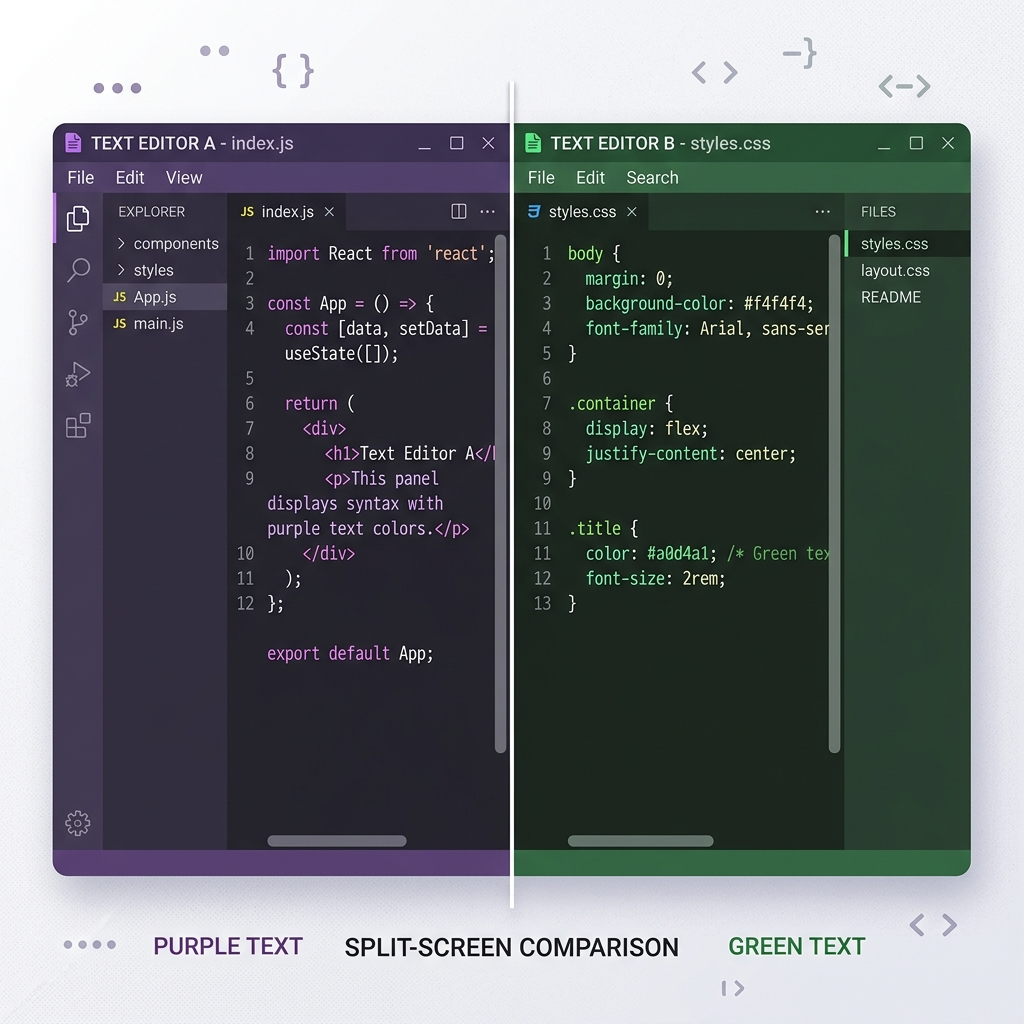
Obsidian extends standard Markdown with its own syntax. These features work great inside your vault but cause problems during export:
| Obsidian Syntax | Standard Markdown Equivalent |
|---|---|
![[image.png]] |  |
[[Page Name]] | [Page Name](page-name.md) |
> [!note] callouts | > **Note:** text blockquote |
==highlighted== | **highlighted** or use HTML <mark> |
If you're exporting a single note, you can manually convert these. For bulk exports, the Obsidian Markdown Export community plugin automates this cleanup.
For a deeper look at what's standard vs. extended, check out our Markdown basic syntax guide and extended syntax reference.
Check Your Images
This is the #1 reason exports fail. Obsidian stores images in your vault folder, and external tools can't access them unless you:
- Use relative paths that point to actual files (not wikilink embeds)
- Ensure image files are in a location accessible to the conversion tool
- Convert images to web-friendly formats (PNG or JPEG) if they're in unusual formats
Method 1: Export Obsidian Notes to PDF
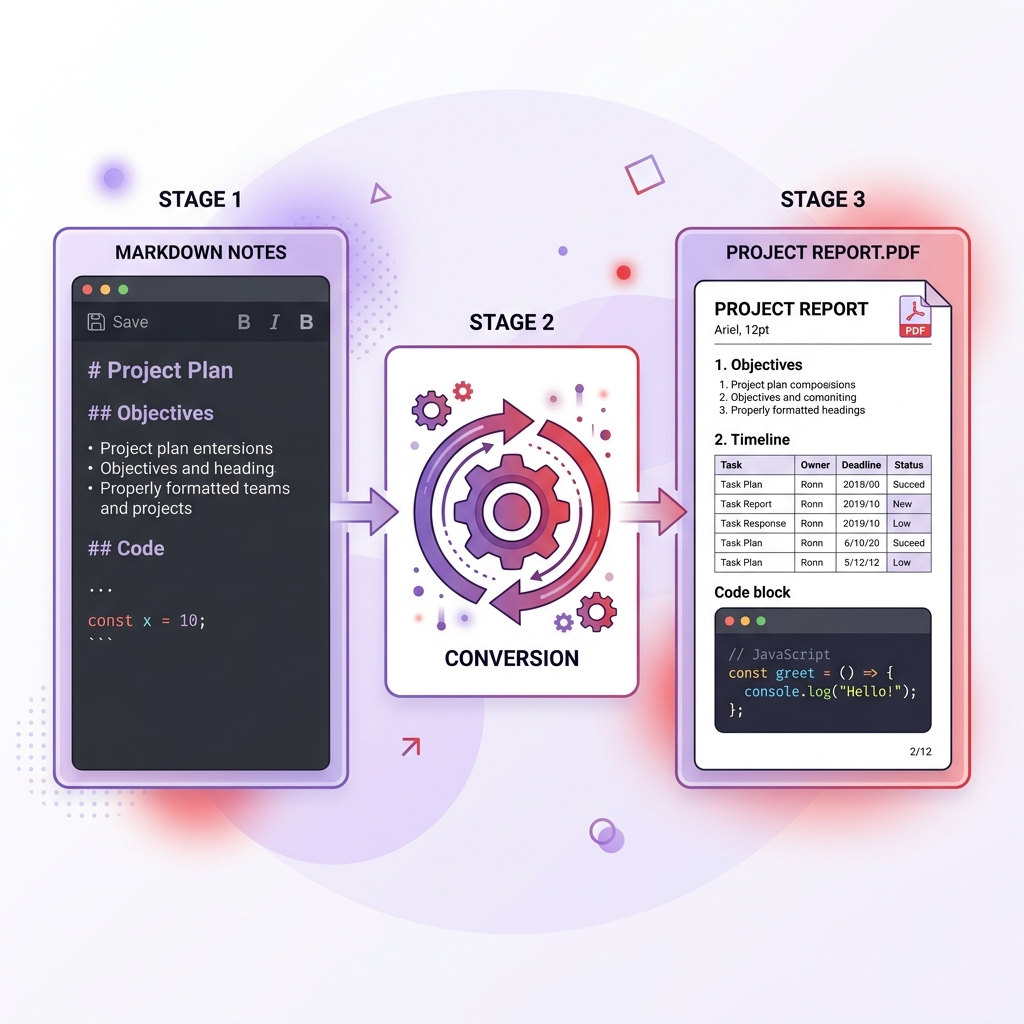
PDF is the most common export format — it preserves layout and works everywhere.
Option A: Online Converter (Recommended for Most Users)
This is the fastest method with the best output quality:
- Open your note in Obsidian
- Copy the full content (Cmd/Ctrl + A, then Cmd/Ctrl + C), or export the
.mdfile from your vault folder - Go to the Markdown to PDF converter
- Paste your content or upload the
.mdfile - Download the converted PDF
The advantage over Obsidian's built-in export: you get proper table formatting, syntax-highlighted code blocks, and consistent styling.
Option B: Pandoc (For Technical Users)
If you prefer command-line tools, Pandoc gives you full control:
pandoc "My Obsidian Note.md" -o output.pdf \
  --pdf-engine=xelatex \
  --variable geometry:margin=1in
A few things to watch out for:
- You need LaTeX installed (MacTeX on Mac, TeX Live on Linux)
- Image paths must be absolute or relative to where you run the command
- Wikilinks won't resolve — convert them to standard links first
Option C: Obsidian Community Plugins
The Better Export PDF plugin improves on Obsidian's native export by adding:
- Custom CSS styling
- Header and footer options
- Page numbering
Install it from Settings → Community Plugins → Browse → search "Better Export PDF."
Method 2: Export Obsidian Notes to Word (.docx)
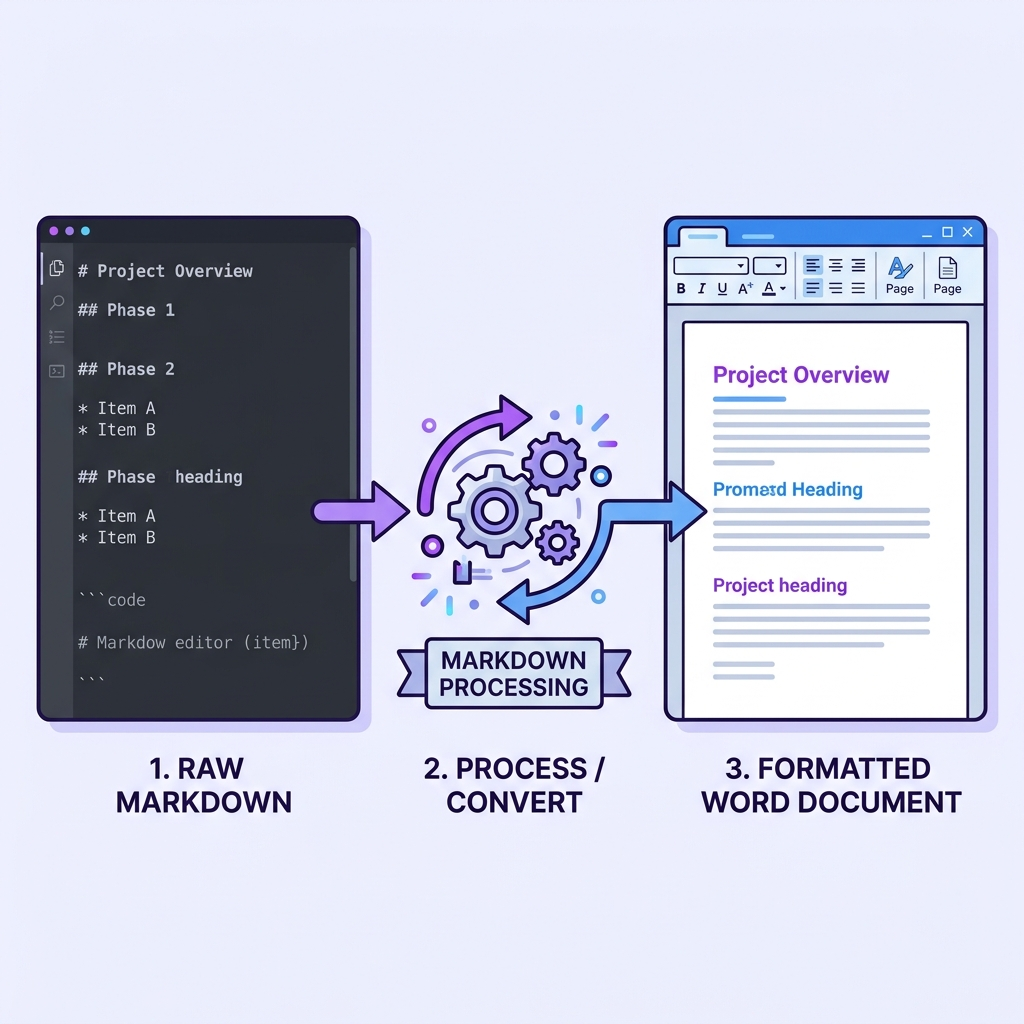
Obsidian has no built-in Word export. Here are the methods that actually work:
Option A: Online Converter (Fastest)
- Locate your note's
.mdfile in the vault folder (right-click the note in Obsidian → "Reveal in Finder/Explorer") - Upload it to the Markdown to Word converter
- Download the
.docxfile
The output uses proper Word styles (Heading 1, Heading 2, Normal, etc.), so you can immediately apply a Word theme to change the visual design.
Option B: Pandoc
pandoc "My Obsidian Note.md" -o output.docx
To use a custom Word template with your company's branding:
pandoc "My Obsidian Note.md" -o output.docx --reference-doc=company-template.docx
This maps Markdown headings to your template's heading styles, keeping everything on-brand.
When to Choose Word Over PDF
Use Word when:
- The recipient needs to edit the document or add comments with Track Changes
- You're submitting to a system that requires
.docx(academic submissions, grant applications) - The document will go through a review/approval workflow
Use PDF when:
- You need a final, read-only version
- The document must look identical on every device
- You're archiving or printing
Method 3: Export Obsidian Notes to HTML
HTML export is useful for publishing to the web, embedding in CMS platforms, or creating documentation sites.
Option A: Online Converter
- Copy your note content or export the
.mdfile - Use the Markdown to HTML converter
- Download clean HTML ready for your website or CMS
Option B: Pandoc
pandoc "My Obsidian Note.md" -o output.html --standalone
The --standalone flag generates a complete HTML page with <head> and <body> tags. Without it, you get an HTML fragment (useful for embedding into existing pages).
Option C: Obsidian Publish (Paid)
Obsidian offers its own hosting service called Obsidian Publish ($8/month). It renders your notes as a website with navigation, search, and graph view. It's convenient but locks you into their platform and doesn't give you raw HTML files.
Handling Common Export Problems
Problem: Images Missing in Export
Cause: Obsidian uses ![[image.png]] wikilink syntax that external tools don't understand.
Fix: Convert to standard Markdown image syntax:

If using an online converter, upload images separately or use publicly accessible URLs.
Problem: Tables Look Broken
Cause: Tables with very long cell content overflow their columns in PDF output.
Fix: Keep cell content concise. For complex data, consider:
- Breaking into multiple smaller tables
- Using bullet lists instead
- Adding line breaks within cells (supported by some converters)
Problem: Formatting Looks Different Than in Obsidian
Cause: Obsidian applies its own CSS theme to your notes. External tools use different styling.
Fix: This is expected. Focus on structural accuracy (headings, lists, code blocks) rather than pixel-perfect visual matching. For PDF output, some converters let you apply custom CSS to match your preferred styling.
A Practical Workflow: Weekly Report Example
Here's a real workflow I use to produce weekly reports from Obsidian:
- Write in Obsidian using a template with standard Markdown (no wikilinks or callouts)
- Review the note in Reading View to catch formatting issues
- Export the
.mdfile from the vault folder - Convert to PDF using the Markdown to PDF converter for the archived version
- Convert to Word using the Markdown to Word converter for the team review copy
Total time: under 3 minutes. The same process in Word would take 15-20 minutes of manual formatting.
Choosing the Right Export Method
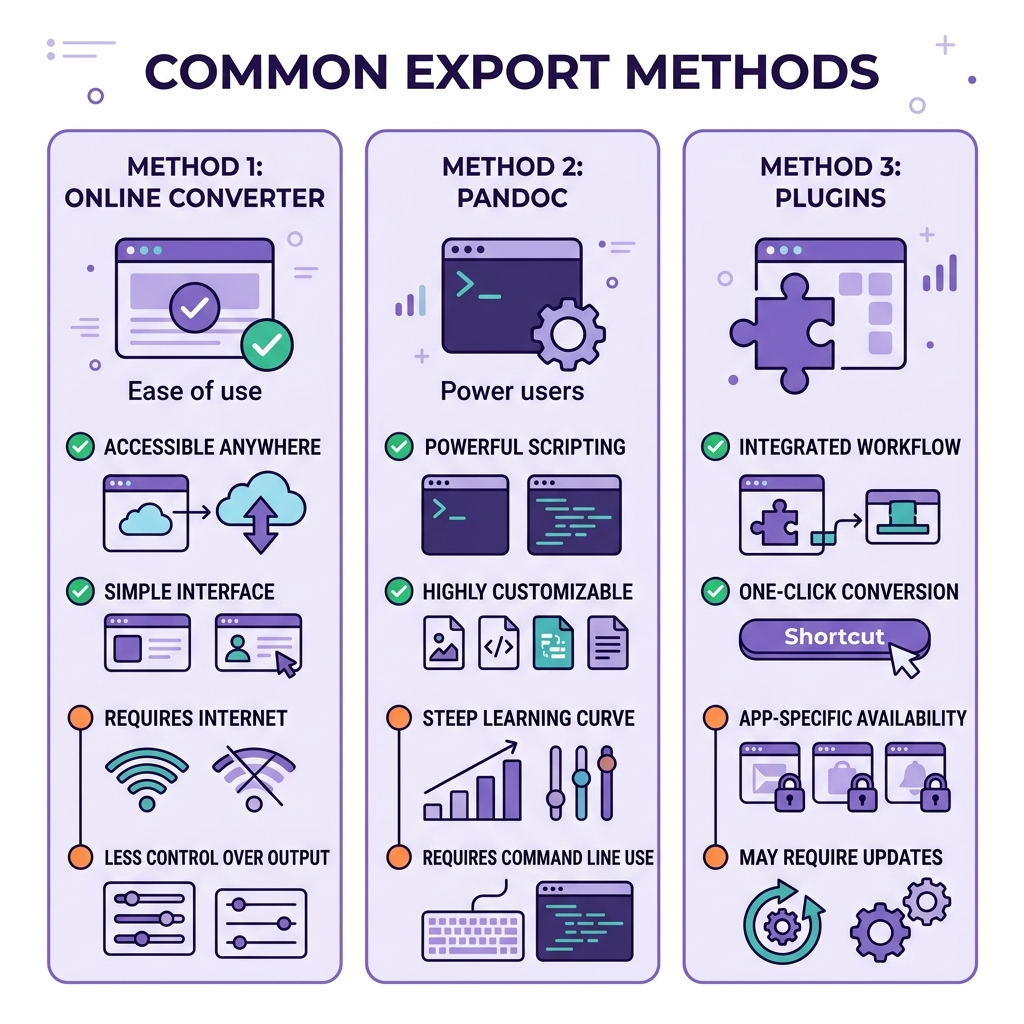
| Factor | Online Converter | Pandoc | Community Plugin |
|---|---|---|---|
| Setup required | None | Installation needed | Plugin install |
| Ease of use | Drag and drop | Command line | In-app menu |
| Output formats | PDF, Word, HTML | 40+ formats | Varies by plugin |
| Custom styling | Limited | Full control | Moderate |
| Batch processing | One at a time | Scriptable | Usually one at a time |
| Best for | Quick, occasional exports | Automated workflows | Staying inside Obsidian |
For most users, an online converter handles 90% of export needs without any setup. Power users who export frequently should invest time in a Pandoc workflow.
Wrapping Up
Obsidian is a great place to write, but getting your notes out in a shareable format takes a bit of extra work. The key is choosing the right method for your situation:
- PDF for final, read-only documents → convert here
- Word for collaborative editing → convert here
- HTML for web publishing → convert here
And regardless of which format you need, always start by cleaning up Obsidian-specific syntax. A few minutes of preparation saves significant troubleshooting after export.
For more conversion techniques, check out our complete Markdown to PDF guide and Markdown to Word guide.