Markdown Extended Syntax: Complete Guide with Examples
Learn every Markdown extended syntax element including tables, code blocks, footnotes, task lists, emoji, and more with clear examples you can use today.

Markdown's basic syntax covers most everyday writing needs, but sometimes you need more. Extended syntax adds powerful features like tables, footnotes, task lists, and more — turning Markdown from a simple formatting tool into a full-featured writing environment.
Not every Markdown processor supports all extended syntax elements. Before using them, check whether your tool or platform supports the specific feature you need. The good news: most modern platforms — GitHub, GitLab, VS Code, and popular static site generators — support the majority of these extensions.
If you're not yet comfortable with the basics, start with our Markdown basic syntax guide first.
Tables

Tables let you organize data into rows and columns directly in Markdown. Use pipes (|) to separate columns and hyphens (-) to create the header row.
| Feature       | Basic Syntax | Extended Syntax |
| ------------- | ------------ | --------------- |
| Tables        | No           | Yes             |
| Footnotes     | No           | Yes             |
| Task Lists    | No           | Yes             |
This renders as:
| Feature | Basic Syntax | Extended Syntax |
|---|---|---|
| Tables | No | Yes |
| Footnotes | No | Yes |
| Task Lists | No | Yes |
Column Alignment
Control text alignment by adding colons to the header separator row:
| Left Aligned | Center Aligned | Right Aligned |
| :----------- | :------------: | ------------: |
| Text         |     Text       |          Text |
| More         |     More       |          More |
:---aligns left (default):---:centers the column---:aligns right
Table Tips
- You don't need to align the pipes perfectly in your source — it just looks nicer
- Tables support inline formatting like bold, italic,
code, and links - Tables do not support headings, blockquotes, lists, or images inside cells
- For complex data, consider using HTML tables instead
Fenced Code Blocks
While basic syntax supports indented code blocks, fenced code blocks are far more practical. Wrap your code with triple backticks (```) or triple tildes (~~~) and specify a language for syntax highlighting.
```python
def fibonacci(n):
    if n <= 1:
        return n
    return fibonacci(n - 1) + fibonacci(n - 2)

print(fibonacci(10))
```
This renders with full syntax highlighting:
def fibonacci(n):
    if n <= 1:
        return n
    return fibonacci(n - 1) + fibonacci(n - 2)

print(fibonacci(10))
Supported Languages
Most renderers support dozens of language identifiers. Here are the most common:
Language        Identifier
--------------  ----------------
JavaScript      javascript / js
Python          python / py
TypeScript      typescript / ts
HTML            html
CSS             css
JSON            json
Bash            bash / sh
SQL             sql
Markdown        markdown / md
Code Block Best Practices
- Always specify a language — it enables syntax highlighting and improves readability
- Use
textorplaintextwhen no language applies - Fenced blocks are preferred over indented blocks because they support highlighting and don't require indenting every line
Footnotes
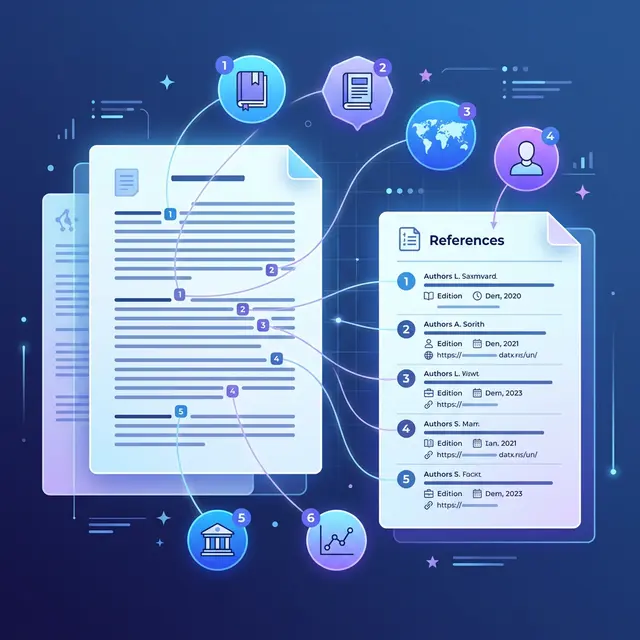
Footnotes let you add notes and references without cluttering your main text. The footnote content appears at the bottom of the page.
Markdown was created by John Gruber in 2004.[^1] It has since become
the standard for technical writing.[^2]

[^1]: John Gruber's original Markdown project is documented on
    [Daring Fireball](https://daringfireball.net/projects/markdown/).
[^2]: Markdown is used by GitHub, Stack Overflow, Reddit, and
    countless other platforms.
This renders the reference numbers as superscript links in the text, with the full notes listed at the bottom of the document.
Footnote Syntax Rules
- The footnote reference uses
[^identifier]— the identifier can be a number or a word (no spaces) - The footnote definition starts with
[^identifier]:followed by the content - Multi-paragraph footnotes require indentation (four spaces or one tab) for subsequent paragraphs
- Footnote definitions can be placed anywhere in the document — they always render at the bottom
Here's a footnote with multiple paragraphs.[^note]

[^note]: This is the first paragraph of the footnote.

    This is the second paragraph, indented with four spaces.

    You can even include code: `console.log("hello")`
Heading IDs
Custom heading IDs let you create precise anchor links to specific sections of your document. Add the ID in curly braces after the heading text.
### My Custom Section {#custom-section}
This generates:
<h3 id="custom-section">My Custom Section</h3>
Linking to Heading IDs
Once a heading has an ID, you can link directly to it:
Jump to [My Custom Section](#custom-section).
This is especially useful for creating a manual table of contents at the top of long documents:
## Contents

- [Introduction](#introduction)
- [Getting Started](#getting-started)
- [Advanced Usage](#advanced-usage)
- [FAQ](#faq)
Compatibility Note
Many processors (including GitHub) automatically generate heading IDs from the heading text even without the {#id} syntax. However, explicitly setting IDs gives you full control and ensures consistent behavior across platforms.
Definition Lists
Definition lists are perfect for glossaries, FAQs, and any content where you need to pair terms with their explanations.
Markdown
: A lightweight markup language for creating formatted text
  using a plain-text editor.

HTML
: The standard markup language for documents designed to be
  displayed in a web browser.

YAML
: A human-readable data serialization language commonly used
  for configuration files.
This generates the following HTML:
<dl>
  <dt>Markdown</dt>
  <dd>A lightweight markup language for creating formatted text
      using a plain-text editor.</dd>
  <dt>HTML</dt>
  <dd>The standard markup language for documents designed to be
      displayed in a web browser.</dd>
</dl>
Multiple Definitions
A term can have more than one definition:
Markdown
: A lightweight markup language.
: A tool used by developers and writers worldwide.
Compatibility Note
Definition lists are not supported by all processors. GitHub Flavored Markdown does not support them, but many static site generators and documentation tools do.
Strikethrough
Strikethrough displays text with a horizontal line through it, indicating deleted or outdated content. Wrap text with double tildes (~~).
The project deadline is ~~Friday~~ Monday.
~~Old information~~ has been replaced with updated content.
This renders as:
The project deadline is Friday Monday.
HTML output:
<p>The project deadline is <del>Friday</del> Monday.</p>
Strikethrough is widely supported — it's part of GitHub Flavored Markdown (GFM) and works on most modern platforms.
Task Lists

Task lists (also called checkboxes or to-do lists) create interactive checklists. Use - [ ] for unchecked items and - [x] for checked items.
- [x] Research extended syntax features
- [x] Write first draft
- [x] Add code examples for each section
- [ ] Create cover image
- [ ] Proofread and edit
- [ ] Publish the article
This renders as:
- Research extended syntax features
- Write first draft
- Add code examples for each section
- Create cover image
- Proofread and edit
- Publish the article
Task List Use Cases
Task lists are especially popular in:
- GitHub issues and pull requests — track progress on work items
- Project documentation — outline steps in a process
- Meeting notes — capture action items with their status
On platforms like GitHub, these checkboxes are interactive — you can click to toggle them directly in the rendered view.
Emoji
There are two ways to add emoji to your Markdown documents.
Copy and Paste
The simplest approach — just copy an emoji from any source and paste it directly into your text:
That's a great idea! 🎉 Let's ship it! 🚀
This works everywhere because emoji are standard Unicode characters.
Shortcodes
Some platforms support emoji shortcodes — keywords wrapped in colons:
:smile: :rocket: :thumbsup: :warning: :heavy_check_mark:
Common shortcodes include:
Shortcode              Emoji
---------------------  -----
:smile:                😄
:rocket:               🚀
:thumbsup:             👍
:warning:              ⚠️
:heavy_check_mark:     ✔️
:x:                    ❌
:fire:                 🔥
:star:                 ⭐
Compatibility Note
Emoji shortcodes vary between platforms. GitHub, Slack, and Discord each support different sets. Copy-and-paste emoji work universally and are the safer choice for cross-platform documents.
Highlight
Highlighting draws attention to key words or phrases by giving them a colored background. Wrap text with double equals signs (==).
This is ==critically important== information.
This generates:
<p>This is <mark>critically important</mark> information.</p>
HTML Fallback
If your Markdown processor doesn't support the == syntax, use the HTML <mark> tag directly:
This is <mark>critically important</mark> information.
Both approaches produce the same result — highlighted text that stands out from the surrounding content.
Compatibility Note
The ==highlight== syntax is not widely supported. It works in some processors but not in GitHub Flavored Markdown. If compatibility is important, stick with the <mark> HTML tag.
Subscript and Superscript
These elements are essential for scientific notation, mathematical expressions, and chemical formulas.
Subscript
Use single tildes (~) to wrap subscript text:
The chemical formula for water is H~2~O.
Carbon dioxide is CO~2~.
This renders as: H2O and CO2.
HTML equivalent:
<p>The chemical formula for water is H<sub>2</sub>O.</p>
Superscript
Use carets (^) to wrap superscript text:
The equation is E = mc^2^.
This is the 3^rd^ edition.
This renders as: E = mc2 and 3rd edition.
HTML equivalent:
<p>The equation is E = mc<sup>2</sup>.</p>
HTML Fallback
If your processor doesn't support the ~ and ^ syntax, use HTML tags directly:
H<sub>2</sub>O is water.
E = mc<sup>2</sup> is Einstein's famous equation.
This HTML approach works in virtually every Markdown renderer.
Automatic URL Linking
Most Markdown processors automatically convert raw URLs into clickable links without any special syntax:
Visit https://example.com for more information.
This renders as a clickable link even without the [text](url) syntax.
Disabling Automatic Linking
Sometimes you want to display a URL as plain text without making it clickable. Wrap it in backticks to render it as inline code:
`https://example.com`
This displays the URL as code rather than a clickable link — useful for documentation where you're explaining URL patterns rather than linking to them.
When to Use Explicit Links
While automatic linking is convenient, explicit link syntax gives you more control:
<!-- Automatic: shows raw URL -->
https://example.com

<!-- Explicit: shows custom text -->
[Visit our website](https://example.com)
Use explicit links when you want descriptive anchor text — it's better for readability and SEO.
Quick Reference
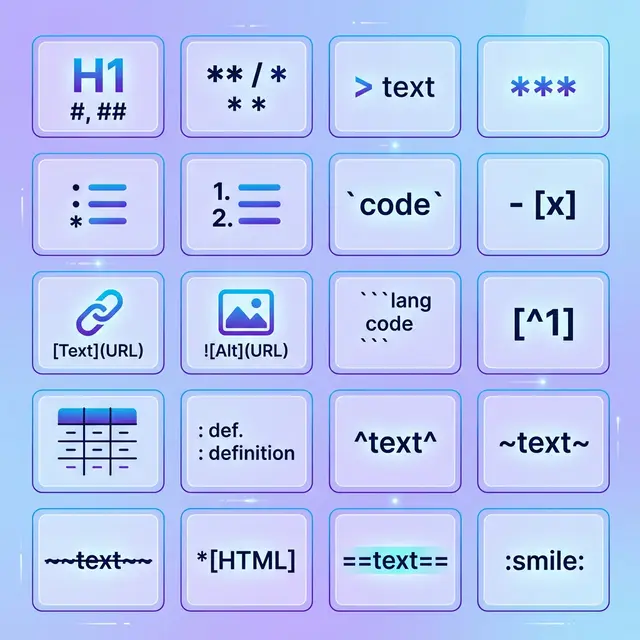
Here's every extended syntax element at a glance:
Element              Syntax                     Support
-------------------  -------------------------  --------
Table                | Col | Col |              Wide
Fenced Code Block    ``` code ```               Wide
Footnote             [^1] / [^1]: text          Moderate
Heading ID           ### Heading {#id}          Moderate
Definition List      Term / : Definition        Limited
Strikethrough        ~~text~~                   Wide
Task List            - [x] / - [ ]             Wide
Emoji (shortcode)    :emoji_name:               Varies
Highlight            ==text==                   Limited
Subscript            H~2~O                      Limited
Superscript          X^2^                       Limited
Auto URL Link        https://...                Wide
Start Using Extended Syntax
Now you know every major extended syntax element. Here's how to put them to work:
-
Check your platform: Verify which features your Markdown processor supports. GitHub, VS Code, and most static site generators handle the widely-supported elements well.
-
Use HTML fallbacks: For features with limited support (highlight, subscript, superscript), the HTML tag alternatives work almost everywhere.
-
Practice with real content: Try adding a table to your next README, footnotes to your next blog post, or task lists to your next project plan.
-
Convert with confidence: When your document is ready to share, convert Markdown to PDF for print-ready output with LaTeX math and table support, export to HTML for web publishing, or generate a Word document for stakeholder review — all extended syntax elements included.
Between basic syntax and these extended features, you now have the complete Markdown toolkit. If you're brand new to Markdown, start with What is Markdown for the essentials. Whatever you're writing — documentation, blog posts, technical specs, or project plans — Markdown has you covered.