Free Markdown to PDF Tools: Complete 2026 Guide
Discover how to convert Markdown to PDF with free online tools. Learn best practices, security tips, and workflow optimization for developers and content creators.
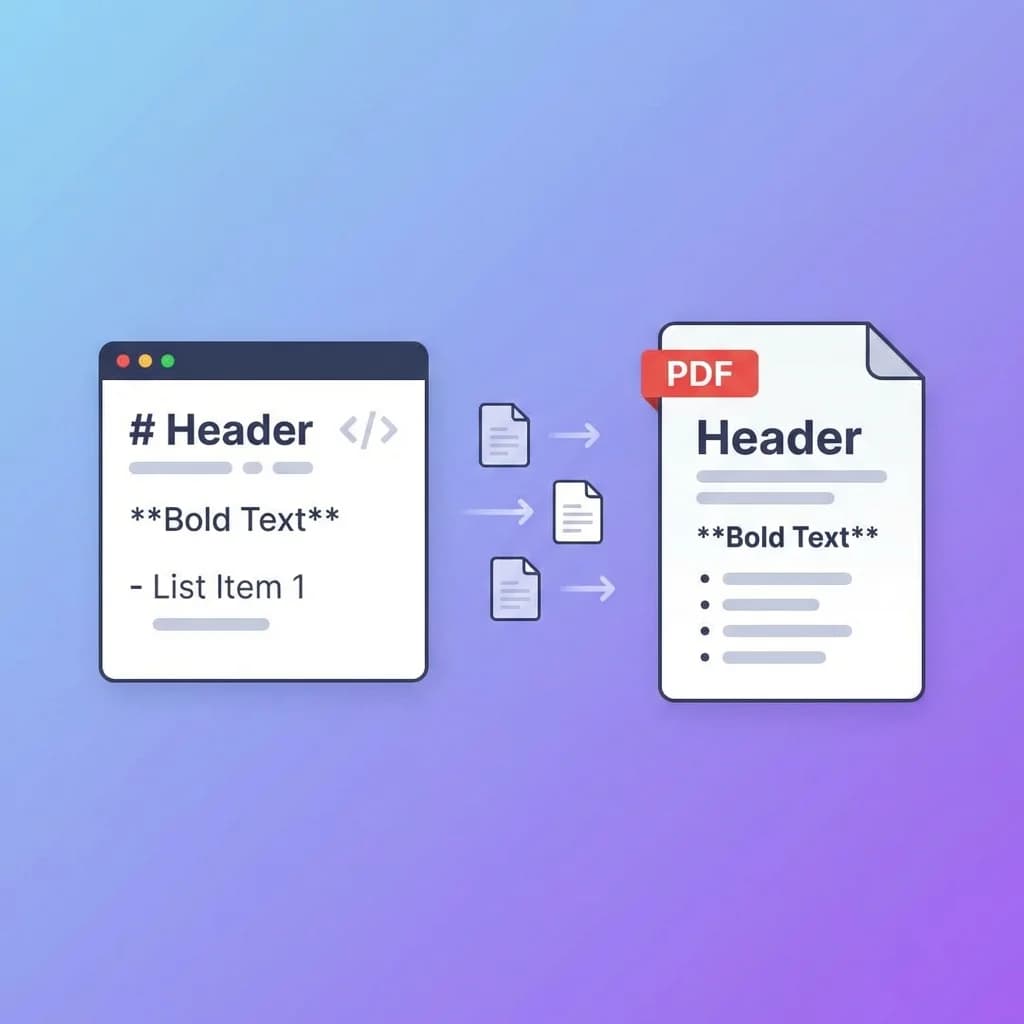
Converting Markdown files to PDF has become an essential skill for developers, technical writers, and content creators. Whether you're preparing documentation, creating reports, or sharing formatted content, understanding the conversion process can save hours of manual formatting work.
I've spent the last three years working with Markdown daily—from writing API documentation to preparing client deliverables. In this guide, I'll share what I've learned about converting Markdown to PDF efficiently, securely, and with professional results.
Why Convert Markdown to PDF?
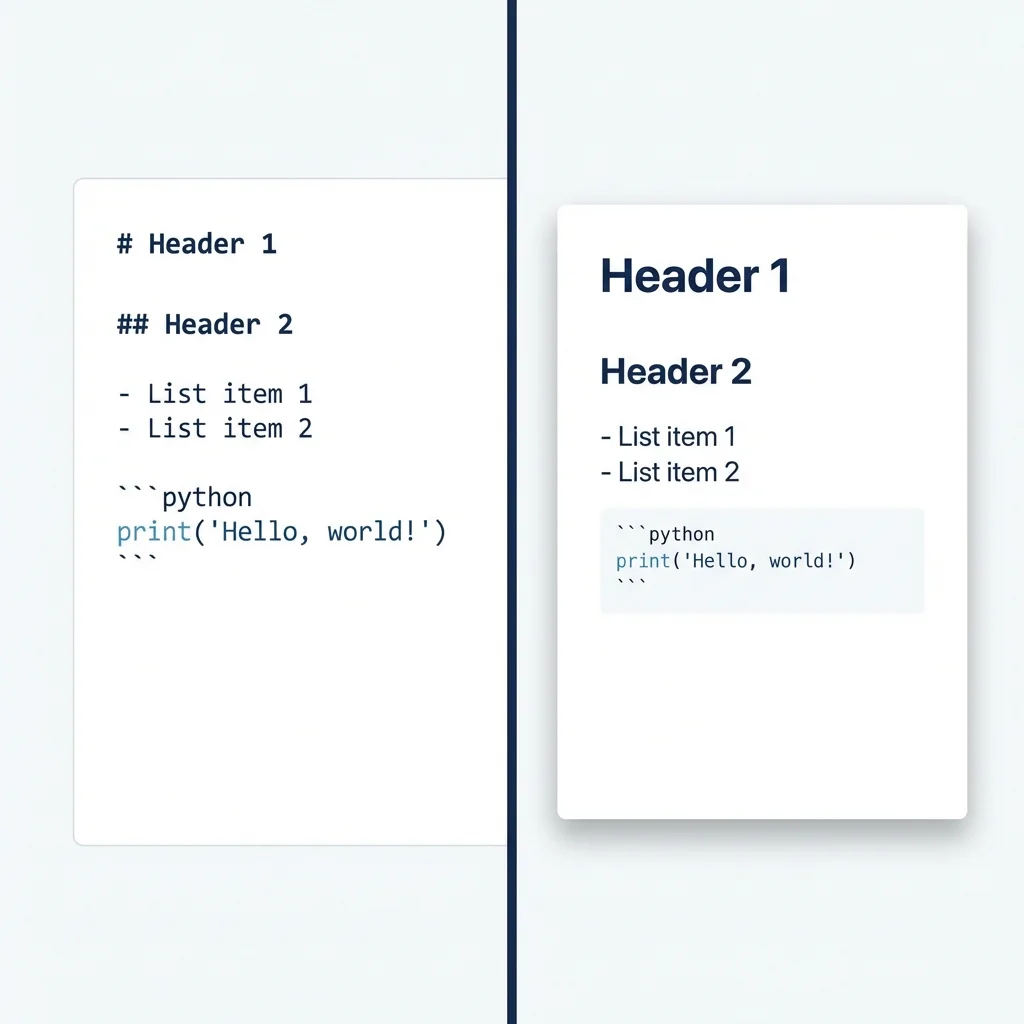
Markdown's simplicity is both its strength and limitation. While it's perfect for writing and version control, plain .md files don't always present well when shared with clients or stakeholders who aren't familiar with the format.
PDF solves this problem by providing:
- Universal compatibility - Opens consistently across all devices and operating systems
- Professional presentation - Preserves formatting, fonts, and layout exactly as intended
- Print-ready output - Perfect for physical documentation or archival purposes
- Security options - Can be password-protected or have permissions restricted
Last month, I needed to share a technical specification with a client. Sending a Markdown file would have required them to install a viewer, but a PDF opened immediately in their browser. This small convenience made a significant difference in their review process.
Of course, PDF is only one direction. If you've received a PDF and need to edit it as Markdown, our PDF to Markdown converter handles the reverse extraction — pulling text, tables, and images back into clean .md files.
Understanding the Conversion Process
The transformation from Markdown to PDF involves several steps that happen behind the scenes:
- Parsing - The Markdown syntax is analyzed and converted into a structured format
- Rendering - The structured content is formatted with styles, fonts, and layout
- Generation - The final PDF document is created with all formatting preserved
Modern conversion tools handle this process automatically, but understanding these steps helps you troubleshoot issues and optimize your workflow.
Common Markdown Elements and PDF Rendering
Different Markdown elements translate to PDF in specific ways:
- Headers (
#,##,###) become styled headings with hierarchy - Bold (
**text**) and italic (*text*) formatting is preserved - Links remain clickable in the PDF output
- Code blocks maintain syntax highlighting when supported
- Images are embedded directly into the document
- Tables are formatted with borders and alignment
Choosing the Right Conversion Tool
When selecting a tool for converting Markdown to PDF, consider these factors:
Security and Privacy
Your documents may contain sensitive information. Look for tools that:
- Use HTTPS encryption for file uploads
- Process files without storing them permanently
- Don't require account creation for basic conversions
- Have clear privacy policies
I once used a converter that cached my files for "faster future conversions." After discovering this in their terms of service, I switched to tools with explicit no-storage policies.
Output Quality
Not all converters produce the same results. Test with a sample document that includes:
- Multiple heading levels
- Code blocks with syntax
- Tables with various alignments
- Images and links
- Special characters
The differences can be subtle but significant, especially for professional documentation.
Ease of Use
The best tool is one you'll actually use consistently. Features that improve usability include:
- Drag-and-drop file upload
- Real-time preview before conversion
- Customization options for fonts and margins
- Batch processing for multiple files
Step-by-Step: Converting Markdown to PDF
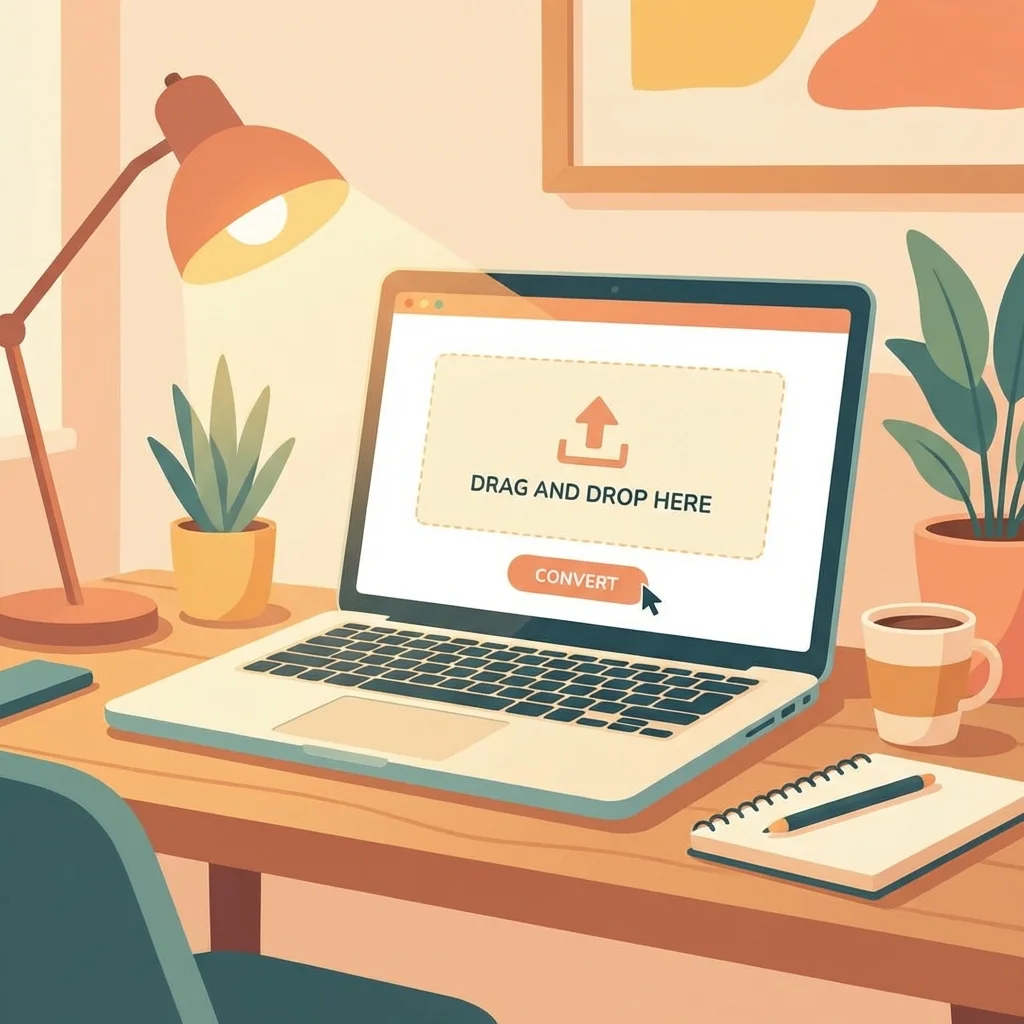
Here's my standard workflow for converting Markdown documents:
1. Prepare Your Markdown File
Before conversion, ensure your Markdown is clean and valid:
# Main Document Title

## Introduction

This is a paragraph with **bold text** and *italic text*.

### Code Example

```python
def hello_world():
    print("Hello, World!")
```

## Conclusion

Final thoughts and [useful links](/blog).
Run your file through a linter like markdownlint to catch syntax errors. This prevents rendering issues in the final PDF.
2. Choose Your Output Format
Consider your use case:
- Standard PDF - Best for general sharing and viewing
- PDF/A - Archival format for long-term storage
- Print-optimized - Adjusted margins and page breaks for physical printing
For most purposes, standard PDF works perfectly. I only use PDF/A when creating documentation that needs to be preserved for compliance reasons.
3. Customize Styling (Optional)
Many converters allow basic customization:
- Page size - A4, Letter, or custom dimensions
- Margins - Adjust for binding or printing requirements
- Fonts - Choose between serif and sans-serif
- Theme - Light or dark mode
I typically stick with defaults unless I'm creating client-facing documents that need to match brand guidelines.
4. Convert and Verify
After conversion:
- Open the PDF and check the first and last pages
- Verify that links are clickable
- Ensure images display correctly
- Check code blocks for proper formatting
- Review page breaks for logical flow
This verification step takes less than a minute but prevents embarrassing formatting issues.
Online vs. Desktop Conversion Tools
Both approaches have their place in different workflows:
Online Converters
Advantages:
- No installation required
- Access from any device
- Always up-to-date
- Often free for basic use
Best for:
- Occasional conversions
- Working on different computers
- Quick one-off documents
I use online conversion tools for about 80% of my needs. The convenience of browser-based access outweighs any limitations for most tasks.
Desktop Applications
Advantages:
- Work offline
- Batch processing capabilities
- Advanced customization options
- Integration with local workflows
Best for:
- Regular, high-volume conversions
- Automated documentation pipelines
- Situations requiring offline access
For my automated documentation builds, I use command-line tools integrated into CI/CD pipelines. But for manual conversions, online tools are faster and simpler.
Security Best Practices
When converting documents that contain sensitive information:
Before Conversion
- Remove any API keys, passwords, or credentials
- Check for confidential client information
- Review embedded images for sensitive content
I learned this lesson the hard way when I accidentally included database credentials in a code example. Now I always do a final search for common patterns like password= or api_key= before converting.
During Conversion
- Use tools with HTTPS encryption
- Avoid public Wi-Fi for sensitive documents
- Check the tool's privacy policy
After Conversion
- Verify the PDF doesn't contain metadata you want to remove
- Consider password-protecting sensitive PDFs
- Delete the original from the converter if it was uploaded
Advanced Techniques
Custom CSS Styling
Some converters support custom CSS for advanced formatting:
@page {
  margin: 2cm;
  @top-center {
    content: "Confidential Documentation";
  }
}

h1 {
  color: #2c3e50;
  border-bottom: 2px solid #3498db;
}
This level of customization is rarely necessary, but it's valuable when creating branded documentation.
Automation and Scripting
For repetitive conversions, automation saves significant time. Here's a simple example using a converter's API:
#!/bin/bash
for file in docs/*.md; do
  curl -F "file=@$file" https://api.example.com/convert > "${file%.md}.pdf"
done
I use a similar script to convert all my project documentation weekly, ensuring stakeholders always have current PDFs.
Handling Large Documents
For documents over 50 pages:
- Split into logical sections
- Use a table of contents with links
- Optimize images to reduce file size
- Test conversion with a subset first
Last quarter, I converted a 200-page technical manual. Breaking it into chapters made the process manageable and the final PDFs easier to navigate.
Common Issues and Solutions
Images Not Displaying
Problem: Images show as broken links in the PDF
Solutions:
- Use absolute URLs for images
- Ensure image files are accessible during conversion
- Check image file formats (PNG and JPEG work best)
- Verify image paths don't contain special characters
Formatting Inconsistencies
Problem: The PDF doesn't match the Markdown preview
Solutions:
- Validate your Markdown syntax
- Test with a simpler document first
- Check for unsupported Markdown extensions
- Try a different converter
File Size Too Large
Problem: The generated PDF is unexpectedly large
Solutions:
- Compress images before embedding
- Remove unnecessary formatting
- Consider splitting into multiple documents
- Use a converter with compression options
Workflow Integration
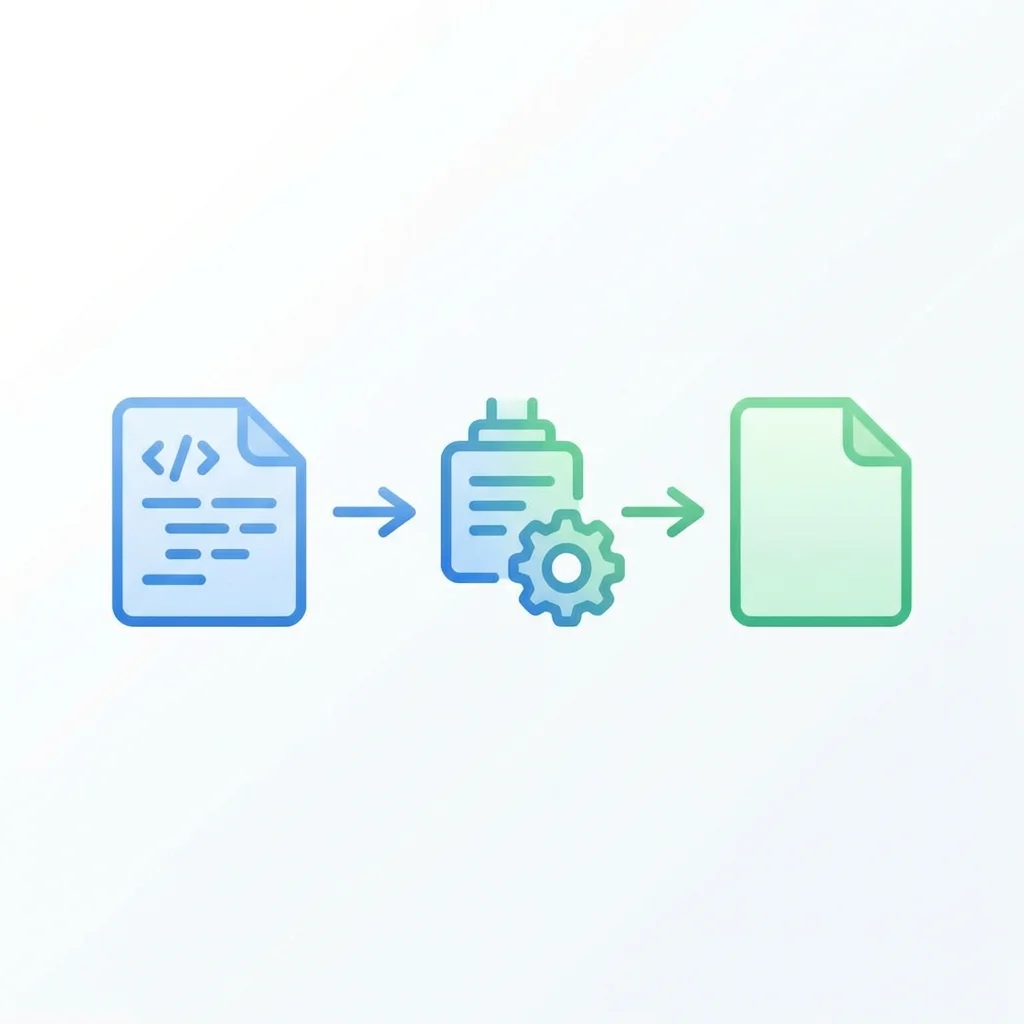
Effective conversion becomes part of a larger documentation workflow:
For Developers
- Write documentation in Markdown alongside code
- Use version control for documentation changes
- Convert to PDF for release notes or client deliverables
- Automate conversion in CI/CD pipelines
For Content Creators
- Draft content in Markdown for simplicity
- Review and edit in a Markdown editor
- Convert to PDF for distribution
- Archive both Markdown and PDF versions
For Technical Writers
- Maintain documentation in Markdown for easy updates
- Generate PDFs for stakeholder reviews
- Convert to multiple formats (Word, HTML) as needed
- Keep Markdown as the source of truth
Alternative Output Formats
While PDF is versatile, other formats serve specific purposes:
- Markdown to Word converter - Better for collaborative editing when stakeholders need to add comments
- Markdown to HTML converter - Ideal for web publishing and CMS integration
- EPUB - Perfect for e-readers
- Slides - For presentations (using tools like Marp)
Need to go in the other direction? You can also convert Word documents back to Markdown or convert HTML pages to Markdown when migrating content into your Markdown-based workflow.
I typically convert to PDF for final deliverables, but use Word for documents that need client edits and HTML for web documentation.
Real-World Use Cases
API Documentation
I maintain API documentation in Markdown because it's easy to keep in sync with code. When releasing a new version, I convert the docs to PDF for the release package. This gives users a portable reference they can access offline.
Client Reports
For monthly client reports, I write the content in Markdown (faster than Word), then convert to PDF for professional presentation. The Markdown source stays in version control, making it easy to track changes and reuse content.
Educational Materials
When creating tutorials, I write in Markdown with code examples. The final PDF preserves syntax highlighting and makes the material easy to print or read on tablets.
Meeting Notes
I take meeting notes in Markdown during calls, then convert to PDF for distribution. This workflow is faster than formatting in Word and produces cleaner results than exporting from note-taking apps.
Best Practices Summary
Based on three years of daily Markdown-to-PDF conversions:
- Keep Markdown clean - Valid syntax converts more reliably
- Test before important conversions - Use a sample document to verify output
- Maintain both formats - Keep the Markdown source for future edits
- Automate when possible - Scripts save time for repetitive tasks
- Choose the right tool - Match the converter to your security and quality needs
- Verify the output - Always check the final PDF before sharing
Getting Started
If you're new to converting Markdown to PDF, start simple:
- Create a basic Markdown document with headers, text, and a link
- Use a free online converter to generate your first PDF
- Compare the output to your expectations
- Gradually add more complex elements (images, tables, code blocks)
- Develop a workflow that fits your needs
The learning curve is gentle, and the time savings become apparent quickly. What used to take me 30 minutes of formatting in Word now takes 2 minutes with Markdown conversion.
Conclusion
Converting Markdown to PDF is a valuable skill that streamlines documentation workflows and improves content sharing. The right tools and practices make the process fast, secure, and reliable.
Whether you're a developer sharing technical specs, a writer distributing content, or anyone who works with formatted documents, mastering this conversion process will save time and produce professional results.
Start with simple conversions, experiment with different tools, and gradually build a workflow that matches your needs. The investment in learning pays off quickly through improved efficiency and better document quality.
For more tips on document conversion and Markdown workflows, explore our Markdown to HTML guide and Markdown to Word guide, or browse all our guides and tutorials.