How to Convert PDF to Markdown in 2026 (Free + RAG-Ready)
Convert PDF to Markdown the right way in 2026. Compare free online tools, Pandoc, and AI-powered extractors — with RAG-ready workflows and OCR fixes.
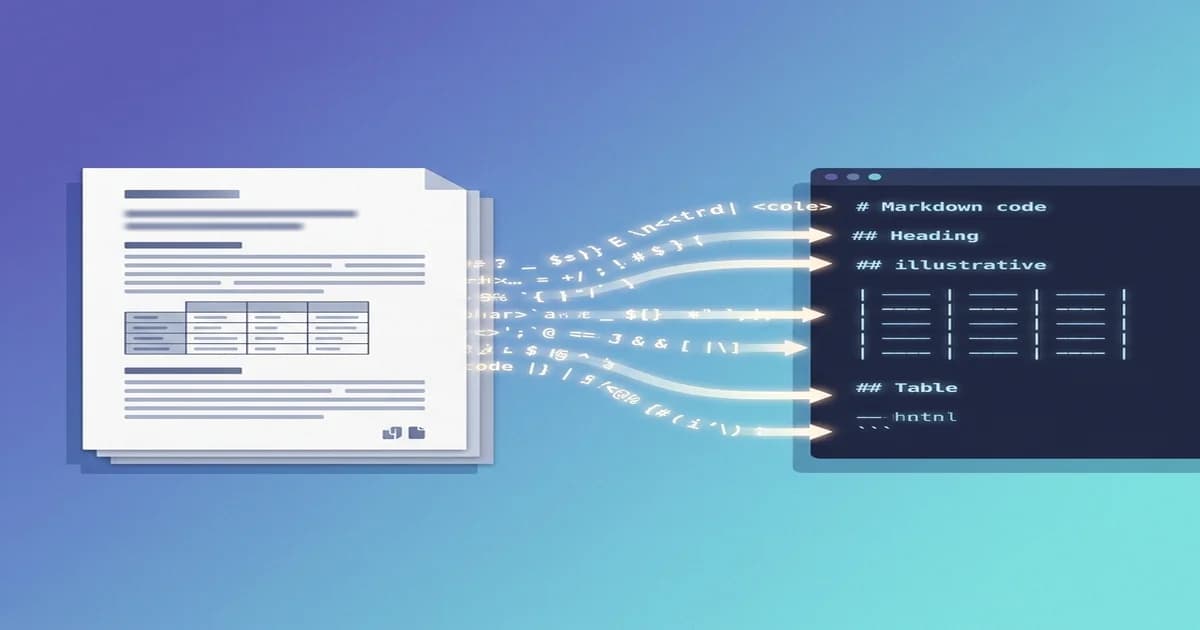
If you've ever copy-pasted a paragraph from a PDF and watched it explode into a garbled mess of line breaks, broken hyphens, and lost formatting, you already know why converting PDF to Markdown became a serious workflow problem in 2026.
PDFs are the universal currency for sharing documents. They're also a terrible source format. The moment you want to feed that content into a RAG pipeline, drop it into a documentation site, or just store it in your notes app, you need structured text — headings as headings, tables as tables, code as code.
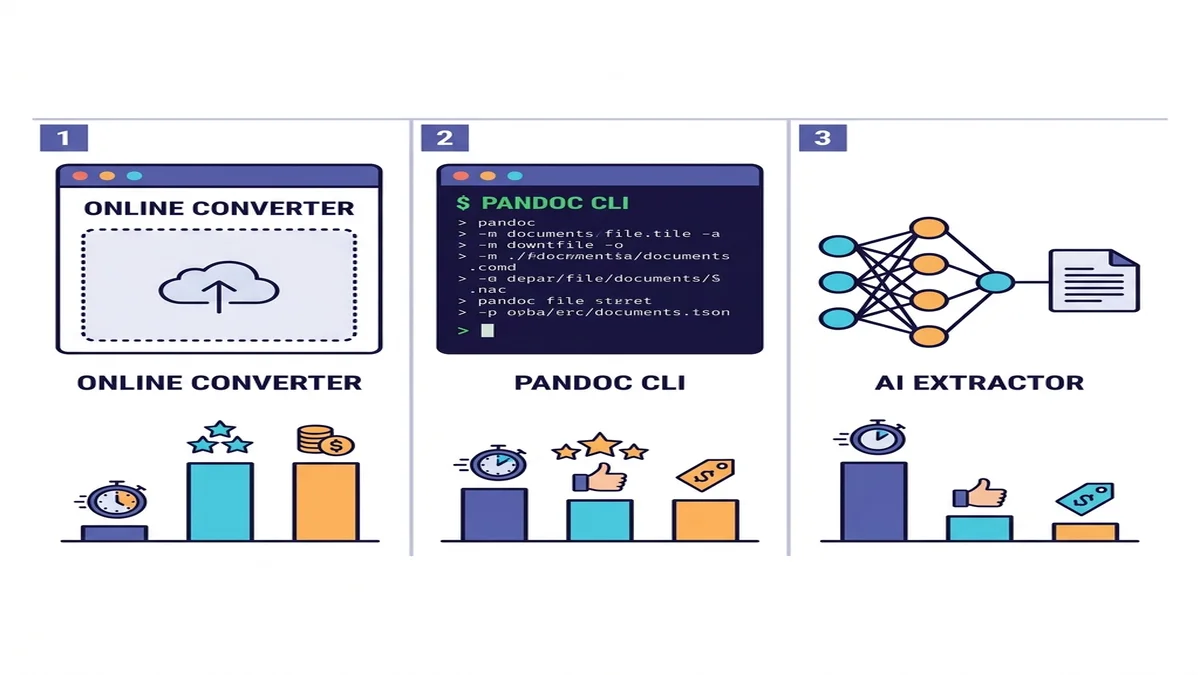
This guide walks through three honest ways to convert PDF to Markdown: a no-install online converter, Pandoc on the command line, and the new wave of AI-powered extractors like marker and Docling. I'll show you which one to pick for which job, how to fix the things they break (tables, math, scanned pages), and how to ship the output into an LLM pipeline without cleaning it up twice.
Why Convert PDF to Markdown?
The same conversion problem keeps showing up in three different communities. Each one has a slightly different reason for caring, but the destination format is the same.
Feed clean text to RAG and LLM pipelines
Retrieval-augmented generation pipelines do not love raw PDF text. Page-break artifacts, two-column layouts collapsed into single columns, headers and footers repeating on every page — all of that becomes noise in the vector database and pollutes retrieval.
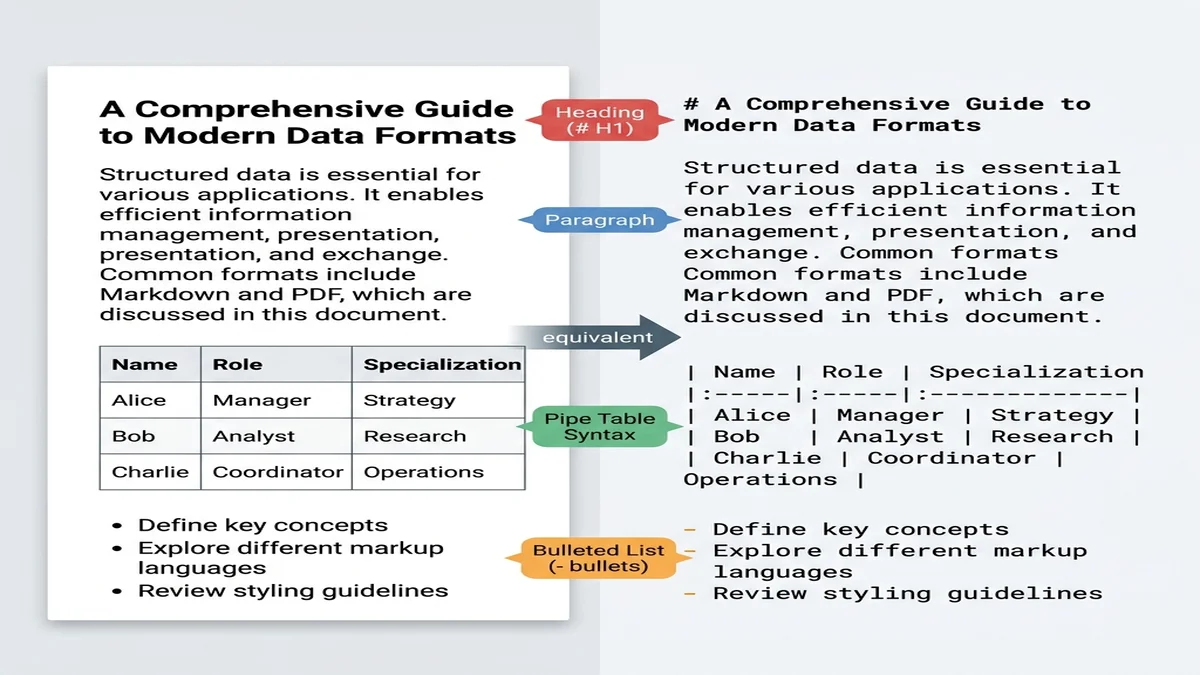
Markdown is closer to "structured plain text" than any other practical format. Large models trained on web data have seen billions of markdown documents (README files, Stack Overflow answers, blog posts), so they recognize # headings as section boundaries and | pipes as table separators without prompting.
Migrate legacy PDFs into modern documentation systems
Docusaurus, MkDocs, Astro Starlight, and Hugo all want markdown. If your team has 200 PDFs of legacy internal docs, you don't want a copy-paste army — you want a converter that preserves the heading hierarchy so the navigation builds itself.
Build a searchable second brain
Obsidian, Logseq, Foam, Roam — every modern note app speaks markdown. Academics digitizing paper archives, knowledge workers archiving meeting reports, and researchers building literature libraries all need the same thing: a clean markdown file with the headings intact, so they can grep across hundreds of documents later.
The Three Approaches (When to Use Each)
There are dozens of tools, but really only three categories. Pick the row that matches your situation.
| Method | Speed | Simple PDFs | Complex PDFs | OCR for scans | Setup |
|---|---|---|---|---|---|
| Online converter | Fast | Excellent | Good | Built-in or auto | None |
| Pandoc + pdftotext | Fast | Good | Mediocre on tables | No | CLI install |
| AI extractor (marker / Docling) | Slow | Excellent | Excellent | Yes | Python + ML deps |
If you're not sure which to pick, start with an online converter. It costs you a minute to try, and for most one-shot or small-batch jobs that's the end of the story. For programmatic pipelines or dense academic content, drop down a row. We compare the wider landscape in our roundup of free Markdown converters.
Method 1: Convert PDF to Markdown Online (Free, No Install)
The fastest path is also the one most people skip because it feels too simple. For an overwhelming share of everyday work — meeting notes, articles, single-chapter reports — a browser-based converter is more than enough.
You can drop your file straight into our free PDF to Markdown converter and skip the rest of this section.
Step-by-step workflow
- Drag and drop the PDF onto the upload zone (or click to pick a file).
- Wait a few seconds for the parser to finish. Anything under 20 pages typically converts before you can read this sentence twice.
- Preview the rendered markdown next to the source on the right.
- Copy the source, or download a
.mdfile.
That's it. No accounts, no email gating, no watermarks on the output.
When this works best
- Single-shot conversions where you don't want to install anything.
- Quick spot-checks before deciding to invest in a programmatic pipeline.
- Privacy-sensitive files where you'd rather not push the document into a third-party API. Our converter processes files in memory and purges them immediately — no persistent storage.
Limitations
Online converters in general (not just ours) have two failure modes worth knowing about.
The first is very large or unusual PDFs. A 600-page scanned legal disclosure with embedded fonts and dynamic form fields is not a "drop and download" scenario for any tool. If you have one of those, jump to the AI extractor section.
The second is scanned PDFs without a text layer. There's no text to extract — the page is just an image. You need OCR first; see Handling Tricky Content below.
Method 2: Pandoc on the Command Line
Pandoc is the Swiss Army knife of document conversion. It's the right tool when you need a reproducible, scriptable pipeline and you don't want to depend on a web service.
The honest catch: Pandoc itself does not have a strong PDF reader. The community workflow goes through pdftotext (from the Poppler utilities) and pipes the result into Pandoc.
# Extract text preserving layout, then convert to GFM markdown
pdftotext -layout input.pdf - | pandoc -f markdown -t gfm -o output.md
For a simple text-heavy PDF — a memo, a single-column article — this combo works well and runs in milliseconds.
When fidelity matters
If your PDF is mostly prose, this pipeline gives you a clean markdown file with the paragraph structure intact. Add -V and --wrap=none flags to tune the output for downstream tools that don't like hard-wrapped lines.
Where Pandoc struggles
- Multi-column layouts (academic papers, magazines):
pdftotextinterleaves the columns and you get unreadable output. - Tables: anything beyond the simplest two-column grid usually arrives as space-separated columns rather than markdown pipes.
- Math and code blocks: there's no semantic preservation; LaTeX equations become text, and code monospace becomes regular paragraphs.
- Scanned PDFs: zero support — Pandoc/pdftotext can't extract text from images.
For tables specifically, our extended Markdown syntax guide covers the GFM table format you'll want the output to match.
Method 3: AI-Powered Extraction (marker, Docling, pymupdf4llm)
The 2024-2025 wave of layout-aware extractors changed what's possible. These tools combine visual layout detection with OCR and structured output generation, so they understand that this region is a table and that region is a two-column body of text. The output is dramatically cleaner on complex PDFs.
Three projects worth knowing:
- marker — uses surya (a layout model) plus heuristics. Strong on academic papers, math, and code blocks. Apache 2.0.
- Docling — from IBM Research. Excellent table reconstruction, plugs into LlamaIndex and LangChain natively. MIT-licensed.
- pymupdf4llm — lightweight wrapper around PyMuPDF. Faster than the other two, fewer ML dependencies, designed specifically for LLM ingestion.
A minimal Python example
Here's the smallest useful Docling pipeline:
from docling.document_converter import DocumentConverter

converter = DocumentConverter()
result = converter.convert("paper.pdf")
markdown = result.document.export_to_markdown()

with open("paper.md", "w") as f:
    f.write(markdown)
Or with pymupdf4llm for the lighter-weight path:
import pymupdf4llm

md_text = pymupdf4llm.to_markdown("paper.pdf")
with open("paper.md", "w") as f:
    f.write(md_text)
Tradeoffs
These tools are slower than the Pandoc pipeline. On a typical CPU laptop, expect a 30-page paper to take tens of seconds rather than milliseconds; with a GPU, that drops back to a few seconds for marker. pymupdf4llm is the fastest of the three because it skips the heavy vision models.
The other tradeoff is dependency weight. A pip install marker-pdf pulls in PyTorch and a few hundred megabytes of model weights. If you're shipping this in a container, plan for the size.
Handling Tricky Content
The differences between methods become obvious when you stop testing on clean two-page memos and start running real-world PDFs through them.
Tables that don't survive
Tables are where most converters fail. The pdftotext + Pandoc path almost always produces space-aligned column soup that no markdown renderer will parse correctly. Online converters and AI extractors do much better here because they detect the table region first and then reconstruct the cells.
The trick: spot-check your first table output before trusting the rest. If the first table is mangled, the other 50 will be too.
Math equations and LaTeX blocks
If your PDF has equations, you need a tool that detects math regions and emits LaTeX ($$...$$) blocks in the markdown. marker does this; Pandoc does not. For scientific writing this is the single biggest reason to pay the AI-extractor speed cost.
Code blocks and inline code
Many PDFs render code in a monospace font but lose the semantic "this is code" tag in the export. AI extractors re-detect code regions by visual style — the monospace font and the indentation — and re-wrap them in triple-backtick fences. Pandoc-based pipelines usually flatten code back into regular paragraphs.
Footnotes and citations
Academic papers use numbered footnotes with the body of the note at the page bottom. The pdftotext path loses the link between reference marker and footnote body. Docling and marker preserve them as proper markdown footnote syntax ([^1] reference + [^1]: body definition).
Scanned PDFs (OCR required)
A scanned PDF is an image of a page, not text. There's nothing to extract until you run OCR first.
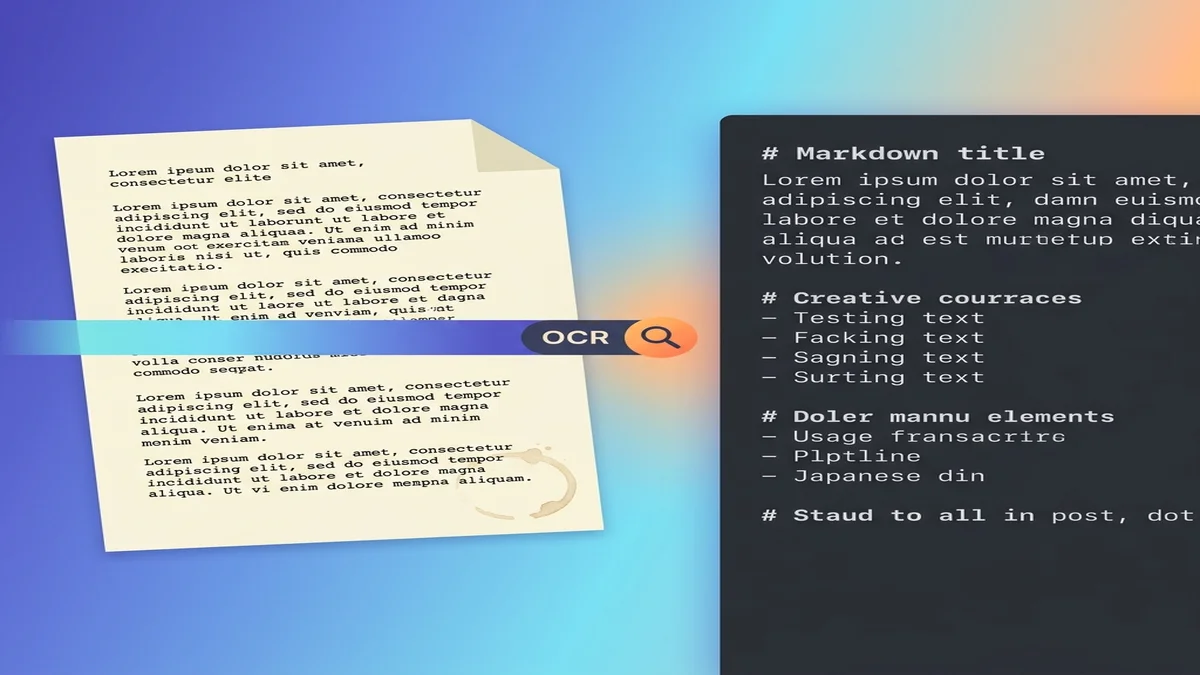
Three reliable paths:
-
ocrmypdf — adds an invisible OCR text layer to a scanned PDF without changing the visual appearance. Once layered, any downstream converter works:
ocrmypdf scan.pdf scan-with-ocr.pdf pandoc scan-with-ocr.pdf -o scan.md -
AI extractors with OCR mode — marker and Docling can detect when a page has no text layer and run OCR automatically. The output is integrated, so you get one markdown file instead of an intermediate PDF.
-
Online converters with auto-OCR — some browser tools (ours included for image-only PDFs) run OCR transparently. Convenient, but watch the language support if your document isn't in English.
One subtle pitfall: "born-digital" PDFs (created from a Word doc, not scanned) can still lack a text layer if they were exported as flattened images. Always check whether you can select text inside the PDF viewer first. If you can, skip OCR. If you can't, run it.
Preparing the Markdown for RAG / LLM Ingestion
If the destination is a vector database, a few small choices during conversion make the retrieval quality noticeably better downstream.
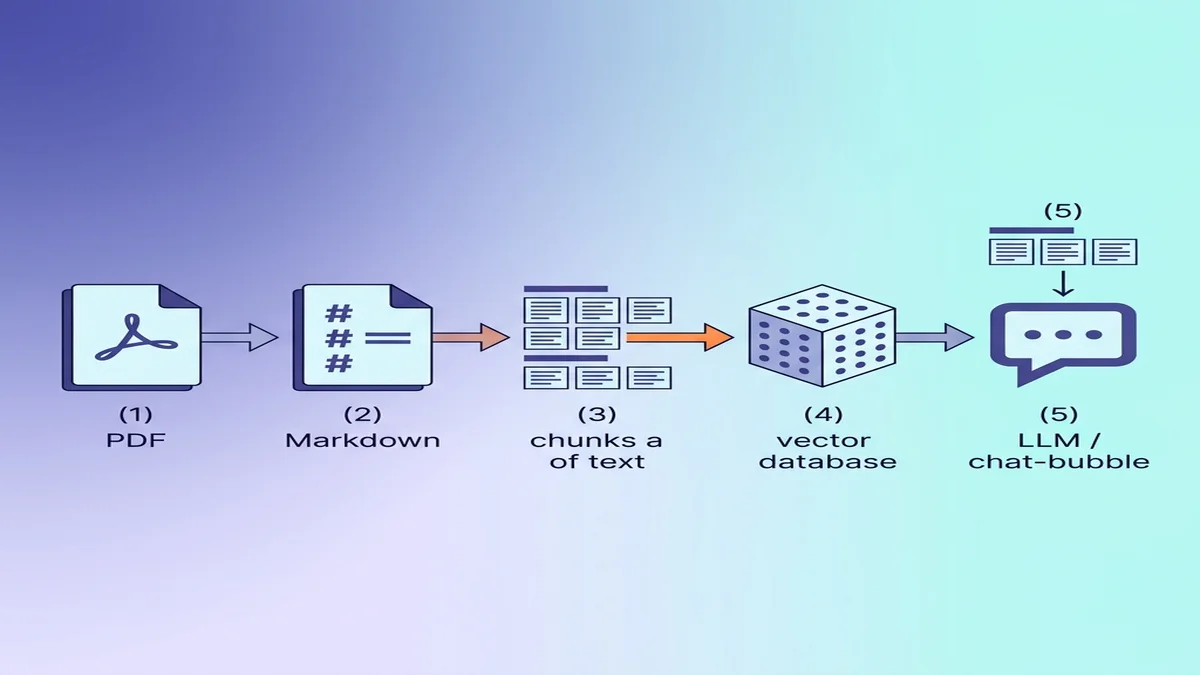
Why Markdown beats raw text for LLMs
Markdown carries structure that plain text loses. A model reading ## Methods knows it has entered a new section; a model reading the same text with all formatting stripped sees only paragraphs of equal weight. If you're new to the syntax, our basic Markdown guide is a 5-minute read.
Chunking by heading hierarchy
The most common RAG mistake is fixed-size chunking — splitting the document into 500-token blocks regardless of structure. Markdown lets you chunk semantically — split on ## H2 boundaries and you get coherent sections instead of mid-paragraph fragments.
# Coarse chunk: split on H2
sections = markdown.split("\n## ")
# Each section now starts at a section header and contains its sub-tree
Better: walk the headings as a tree, attaching each H3 to its parent H2 in the chunk metadata.
Preserving metadata in frontmatter
Add YAML frontmatter at the top of every converted file so the source information travels with each chunk:
---
source: research-paper-2025.pdf
authors: ["Smith, J.", "Doe, A."]
year: 2025
section: "Introduction"
page_range: "1-3"
---
When the LLM retrieves a chunk, this metadata becomes the citation footer. It's also how you eventually answer the "where did this claim come from?" question without re-running retrieval. If you're building this kind of pipeline from chat exports, the same idea applies to ChatGPT/Claude transcripts.
Common Pitfalls and How to Avoid Them
A few things bite people who are doing this for the first time.
- Skipping encoding normalization. PDFs love Unicode tricks: ligatures (
fi,fl), smart quotes ("vs"), em-dashes that look like hyphens. Run the output through a Unicode normalization pass (NFKC in Python) before feeding it anywhere. - Leaving page headers and footers in. Every page's
Page 4 of 12footer becomes noise in your retrieval. Strip repeated lines that appear at regular intervals. - Trusting the first table you see. Spot-check at least the first two tables before assuming the rest are fine.
- Assuming "born-digital" means "has a text layer." Some PDFs are exported as flattened images even though they started as Word docs. Always try to select text first.
- Over-chunking small documents. For a 3-page memo, just feed the whole markdown to the model and skip the RAG step entirely. Retrieval is overkill when context window > document.
FAQ
What's the best free PDF to Markdown converter?
For most users, an online converter is the fastest path — drag, drop, done. For batch or programmatic work, pymupdf4llm (Python) and Pandoc (CLI) cover the simple cases. For academic papers with tables and math, marker and Docling produce noticeably better output. The "best" choice depends on whether you optimize for setup time or output fidelity.
Can ChatGPT or Claude convert PDF to Markdown?
They can, with caveats. Both can read a PDF directly and produce markdown output, but on long documents you may hit context limits, and accuracy on tables and math varies between runs. For deterministic batch conversions a dedicated converter is more reliable. See exporting ChatGPT to Word/PDF/HTML for the related round-trip workflow.
How do I convert a scanned PDF to Markdown?
Run OCR first. The cleanest path is ocrmypdf to add a text layer, then any converter works on the OCR'd PDF. Alternatively, marker and Docling have OCR built in and produce markdown directly from image-only PDFs.
Is online PDF-to-Markdown conversion private?
With our converter, files are processed in memory and purged after conversion — no account required, no persistent storage. Other services vary; check the privacy policy of any tool you use, especially for confidential documents.
How do I keep tables intact when converting PDF to Markdown?
Skip the pdftotext + Pandoc pipeline for table-heavy PDFs — it almost always mangles them. Use an online converter that emits GFM tables, or use an AI extractor like marker or Docling. Spot-check the first few tables either way.
Should I keep the original PDF or just the Markdown?
Keep both. The markdown is for ingestion, search, and editing. The PDF is your source of truth for citation and audit. Reference the PDF filename and page range in the markdown frontmatter so you can always trace a claim back to its source.
Ready to convert your first PDF?
If you just want the result, our free PDF to Markdown converter handles the everyday cases without a signup. For the next step — turning that markdown into a polished Word document or share-ready PDF — see our Markdown to Word guide.
References
- Pandoc User's Guide — the canonical CLI conversion reference.
- GitHub Flavored Markdown Spec — the dialect this guide targets for output.
- Docling (IBM Research) — open-source layout-aware PDF extractor.
- marker — open-source PDF-to-markdown with strong academic-paper handling.
- pymupdf4llm — lightweight markdown extraction wrapper around PyMuPDF.
- OCRmyPDF — adds a searchable text layer to scanned PDFs.