ChatGPT to PDF: Export Chats Without Broken Tables or Math
Convert ChatGPT to PDF online without an extension. Three methods compared, plus fixes for broken tables, code blocks, and LaTeX math in exported chats.
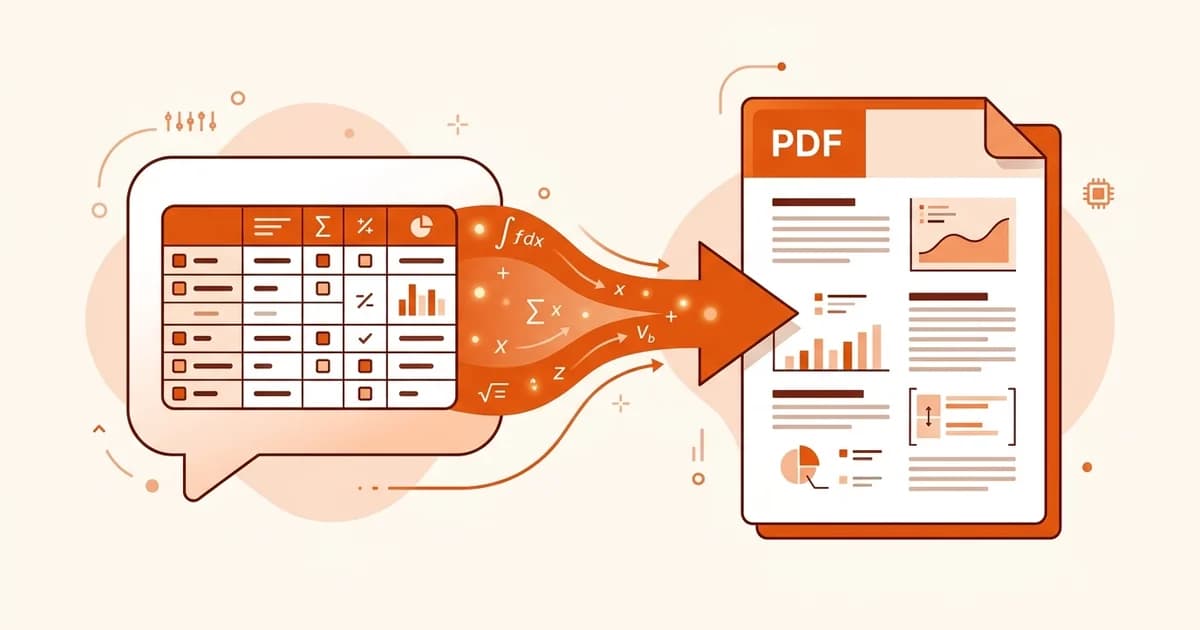
You need a ChatGPT answer as a PDF — to send a client, attach to a report, or file away before the conversation scrolls into oblivion. The obvious moves all disappoint: copy-paste into a document mangles the tables, the browser's print dialog slices code blocks in half, and the Chrome extensions want permission to read everything you type.
Converting ChatGPT to PDF cleanly comes down to one insight: ChatGPT already writes its answers in Markdown. Grab that Markdown instead of the rendered text, run it through a Markdown-to-PDF converter, and tables, code, and math arrive intact.
This guide covers three ways to do it, when each one is worth using, and how to fix the formatting problems the other methods cause.
Save a ChatGPT answer as a PDF in 30 seconds
Three steps take any ChatGPT answer from the chat window to a clean PDF:
- In ChatGPT, add "respond in Markdown format inside a code block" to your prompt — or ask it to reformat its last answer that way.
- Click Copy code on the Markdown block. Don't drag-select the rendered text.
- Paste into a Markdown to PDF converter and download the PDF.
That's the whole workflow. Tables stay tables, code keeps its highlighting, and LaTeX equations render as actual math instead of \frac{V_f}{V_0} soup.
The rest of this article explains why the shortcuts fail and what to do when your export has already gone wrong.
Why copy-paste and Ctrl+P mangle ChatGPT formatting
ChatGPT renders its answers as HTML in your browser, but the model actually produces Markdown. Every export method is a bet on which layer you capture — and the rendered layer loses information the moment it leaves the page.
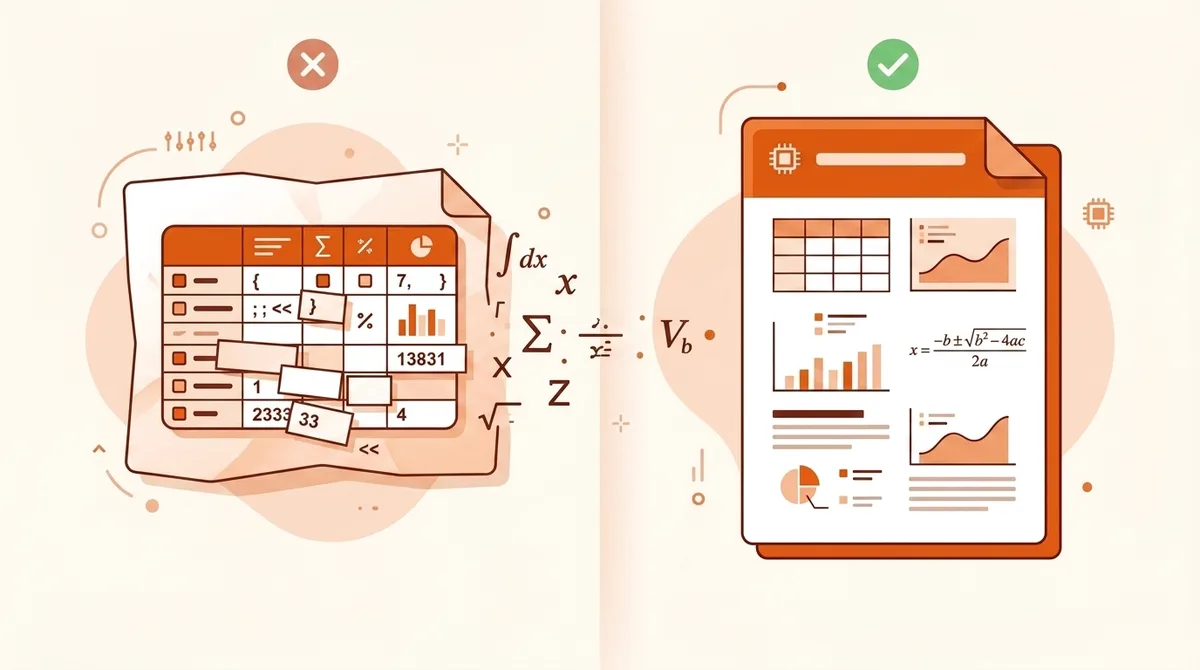
Three elements break most often:
- Tables. The rendered HTML table becomes tab-separated text on the clipboard. Word and Google Docs guess at the columns; the guess is usually wrong.
- Math. ChatGPT renders equations with KaTeX. Copy the rendered output and you get either flattened Unicode or raw LaTeX source, depending on where you paste.
- Code blocks. Syntax highlighting is applied by the page, not embedded in the text. Pasted code arrives as a plain block — or worse, as a dark rectangle if the paste keeps background styles.
The browser's print dialog (Ctrl+P / Cmd+P) has a different failure mode: it captures the page faithfully but paginates it blindly. Long code blocks get cut mid-line, the sidebar sometimes prints alongside the chat, and a 40-message conversation turns into 60 pages with buttons and avatars scattered through it.
Working with the Markdown source skips all of this, because the structure travels with the content. If you're new to the syntax, the Markdown basics guide shows what those | pipes and $$ fences actually mean.
Method 1: Convert ChatGPT to PDF online — no extension needed
This is the method from the 30-second answer, expanded. It's free, works in any browser, and doesn't ask for access to your ChatGPT account.
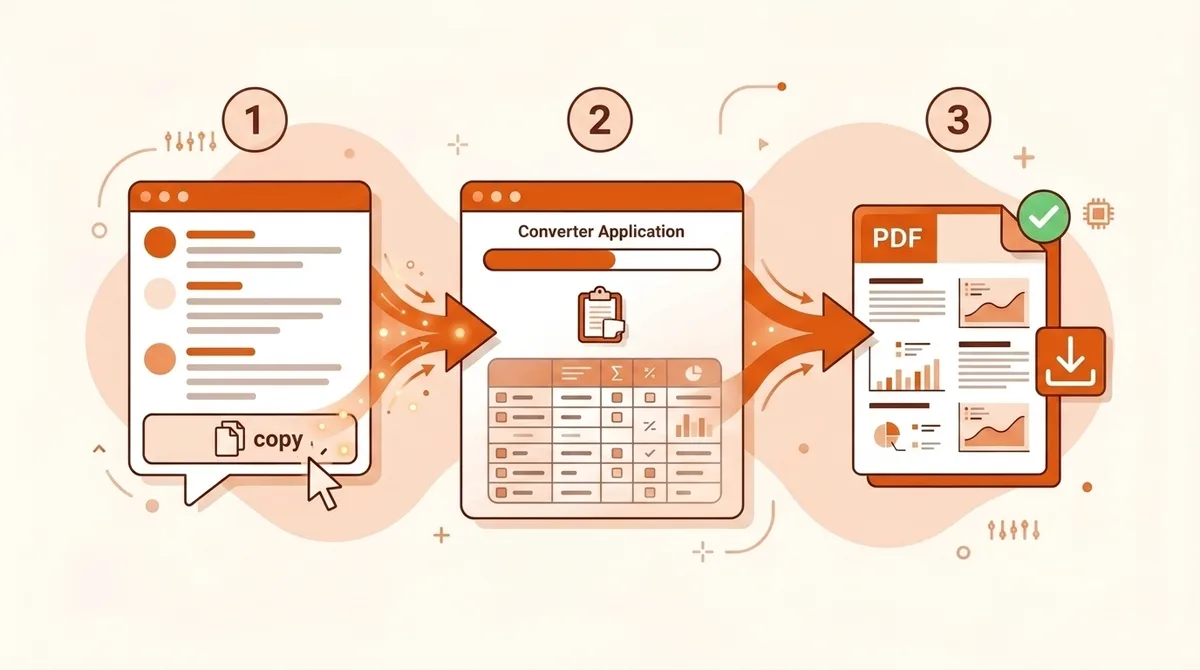
Step 1 — Get the Markdown out. If you're still writing the prompt, append: "Format your entire response in Markdown inside a single code block." For an answer that already exists, send: "Repeat your previous answer as raw Markdown in a code block." Either way, ChatGPT wraps the response in a code block with a Copy code button in the corner.
Step 2 — Copy with the button. The Copy code button grabs the raw source. Drag-selecting grabs the rendered text — the exact thing we're trying to avoid.
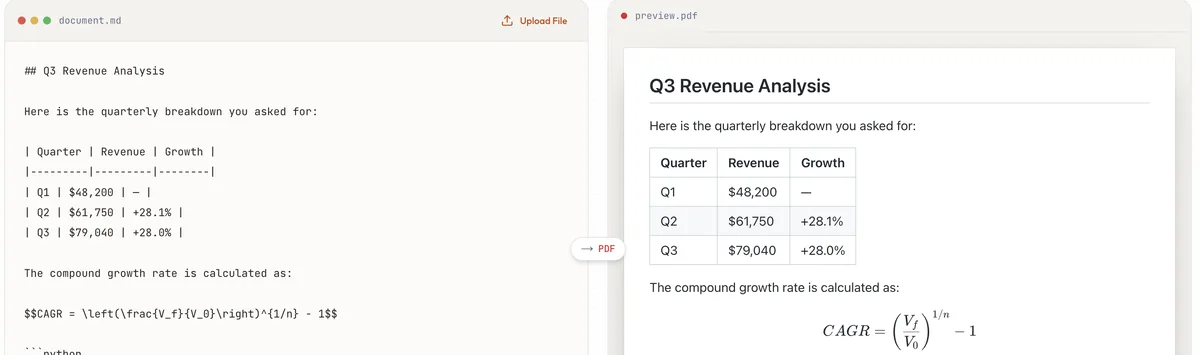
Step 3 — Paste and convert. Open the Markdown to PDF converter, paste, and watch the live preview. What you see is what the PDF contains. Download when it looks right.
I ran a typical case through this workflow while writing this guide: a revenue analysis with a three-row table, a CAGR formula in LaTeX, and a Python snippet. All three rendered correctly on the first pass — the table with real borders, the equation typeset properly, the code block intact:
The tradeoff: this converts one answer at a time. For archiving a whole conversation in bulk, see the long-conversations section below.
Method 2: Browser print to PDF — when it's good enough
Ctrl+P has one real advantage: zero setup. For a short, text-only answer — no tables, no code, no math — it produces an acceptable PDF in five seconds. Use it when the content is plain prose and nobody downstream will judge the formatting.
Know its limits before relying on it:
- Pagination happens wherever the page height runs out, including mid-table and mid-code-block.
- Very long chats sometimes truncate: the browser prints what's loaded in the DOM, and ChatGPT lazy-loads older messages. Scroll to the top of the conversation first.
- The output is a picture of a webpage, not a document. Fonts, margins, and page headers aren't yours to control.
One habit worth adopting: ChatGPT's own share function (the export options under Settings → Data controls) produces an HTML file of the conversation, which prints slightly cleaner than the live page. It still won't fix tables that were never Markdown to begin with.
Method 3: ChatGPT to PDF extensions — convenience vs. permissions
Extensions like ChatGPT Exporter and PDFCrowd's exporter add a download button directly into the ChatGPT interface. One click, whole conversation, done. For people who export chats daily, that convenience is real.
Two things to weigh before installing one:
Permissions. A ChatGPT export extension needs to read the page content — which means it can read every conversation you have while it's enabled. That's inherent to how they work, not a flaw of any particular extension. Whether it matters depends on what you paste into ChatGPT. If work documents or client data flow through your chats, an extension that ships your conversation HTML through its own servers is a data-handling decision, not just a UX one. Reddit threads asking for "an easy way to save ChatGPT conversations" fill up with extension recommendations, followed by exactly this concern.
Fidelity is inconsistent. Extensions render the conversation HTML into PDF themselves. Some handle LaTeX well, some flatten it; table handling varies by version. Test one with your own content — especially math-heavy content — before trusting it with anything important.
If you export occasionally and care about formatting, the online converter route gives you the same result with nothing installed. If you export entire conversations daily and the content isn't sensitive, an extension earns its place.
Which ChatGPT PDF export method should you use?
For technical or shared documents, the online converter wins on fidelity; for daily bulk archiving, an extension earns the install. Here is the full picture:
| Online converter | Browser print | Extension | |
|---|---|---|---|
| Tables / code / math fidelity | Full | Poor | Varies |
| Whole conversation at once | No — per answer | Yes | Yes |
| Requires install / permissions | No | No | Yes — reads page content |
| Cost | Free | Free | Free tier, often paid |
| Control over output styling | Live preview | None | Limited |
| Best for | Reports, technical content, anything shared | Quick personal archive of plain text | Daily bulk exporting |
Export a whole ChatGPT conversation to PDF (and Deep Research reports)
Two cases deserve their own notes.
Long conversations. The per-answer workflow doesn't scale to a 50-message thread. The pragmatic combination: ask ChatGPT to "summarize this entire conversation as a structured Markdown document — keep all tables, code, and equations", then convert that single document to PDF. You get a readable brief instead of a raw transcript, which is usually what the recipient wanted anyway. For a verbatim archive, browser print (after scrolling to load everything) is the fallback.
Deep Research reports. ChatGPT's Deep Research mode produces long, citation-heavy reports — and they're the best-case input for the Markdown workflow, because the output is already structured with headings, lists, and links. Ask for the report in Markdown, copy, convert. The result is a clean multi-page PDF with a working structure, which the print dialog cannot produce from the same content.
Fixing broken tables, math, and code in ChatGPT PDF exports
The equation shows as raw LaTeX (\frac{a}{b}) in the PDF. Your source captured the LaTeX but the converter didn't render it. Make sure the math is fenced — $...$ for inline, $$...$$ for display math — and use a converter with math support. The Markdown to PDF tool renders LaTeX via KaTeX by default.
The table collapsed into one column. The copy grabbed rendered text, not Markdown. Go back and use the Copy code button on a Markdown-formatted answer. If the answer wasn't in Markdown, ask ChatGPT to reformat it — models reproduce their own tables reliably.
Code lost its highlighting. Check the code block's opening fence — the three backticks that start it should be followed immediately by a language name, as in ```python. ChatGPT usually includes the language; if the fence is bare, edit the pasted Markdown and type the language after the backticks yourself.
Special characters look wrong. Currency symbols and non-Latin text survive the Markdown route fine, but some extensions and print flows mis-handle encoding. If you see â€" where a dash should be, switch methods rather than fighting the encoding.
ChatGPT PDF export FAQ
Is converting ChatGPT to PDF free? The Markdown route is free: ChatGPT provides the Markdown, and converting a pasted document to PDF costs nothing to preview. Downloading the finished PDF takes a free account — new accounts include free starter credits, and the pricing page covers what comes after. Browser print is free. Extensions typically offer a free tier with limits and a paid tier for bulk export.
Can I do this without installing anything? Yes — that's Method 1. Copy the Markdown, paste it into the online converter, download the PDF. Nothing touches your browser beyond a normal web page.
Does this work on a phone? Mostly. The ChatGPT mobile app's copy button copies Markdown source, and the online converter works in a mobile browser. The friction is switching between apps; for long documents it's more comfortable on a desktop.
Can I export a whole conversation at once? Not with the per-answer workflow. Either have ChatGPT consolidate the conversation into one Markdown document first (see the long-conversations section), use browser print for a verbatim copy, or use an extension if bulk export is a daily need.
Why does math break in every other method? Because rendered math is a picture of an equation, not the equation itself. Only the LaTeX source survives being moved between tools, and only the Markdown layer carries that source. Capture Markdown and the math re-renders anywhere.
What if I need Word or HTML instead of PDF?
Same workflow, different last step: paste the same Markdown into the Markdown to Word converter for a .docx, or Markdown to HTML for clean semantic markup. The full multi-format walkthrough lives in our ChatGPT export guide for Word, PDF & HTML.
The workflow, one more time
Ask for Markdown. Copy the code block. Paste, preview, download.
Every formatting disaster in a ChatGPT export traces back to capturing the rendered page instead of the source underneath it. Once you grab the source, the Markdown to PDF converter does the rest — tables, code, and equations included.
Related guides
- ChatGPT to Word, PDF & HTML: the multi-format export guide
- Markdown basic syntax
- Markdown to PDF: the complete guide
References
- OpenAI Help Center — How do I export my ChatGPT history and data?
- MDN Web Docs — Printing: page layout and media queries
- KaTeX — Supported LaTeX functions